

Subscribe For Free Updates!

We'll not spam mate! We promise.

Showing posts with label Wifi. Show all posts

Monday, 15 June 2015

Edimax 150N BR-6228nS V3 Review and Specifications

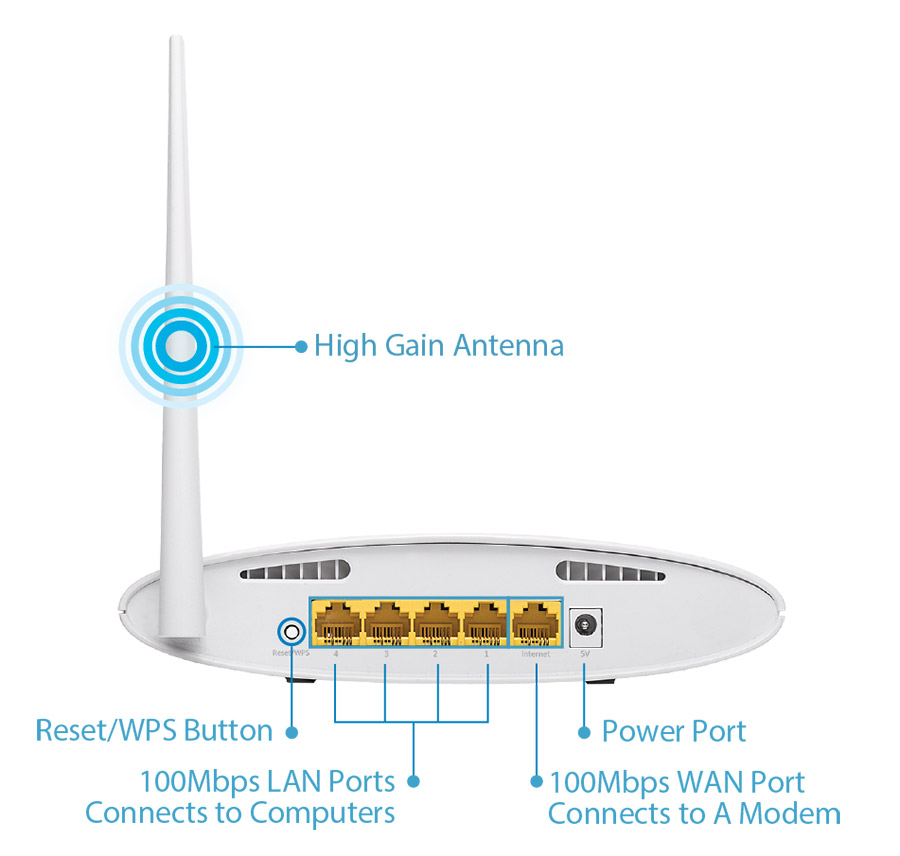
I have been posting a lot of reviews about various PC components, but forgot one of the most essential one, a Router! For reviw, I got the Edimax BR-6228nS V3, which is a five-in-one wireless router, that aims to be the most convenient connectivity option to use, as well as the most efficient.
It is a 5 in 1 Router than can operate in Wi-fi mode, Acess Point mode, Range extender, Wireless Bridge and WISP (Wireless Internet Service Provider).
Networking your whole home can be troublesome, with those dead jones and the corners where the signal drops magically! Sometimes you need to place your devices in a particular way because they wont pick-up the signal in any other position. That's when you ned Edimax 5 in 1 Router.
The Edimax 150N BR-6228nS V3 is available on Snapdeal for Rs 1,999 and provides upto 2.4 Ghz speed which is commendable.
Now lets get into the specifications and technical details:

What's in the Box?

The Edimax BR-6228nS V3 5 in 1 router comes in an elegant packaging with the standard components that you need for installation:


  • Edimax BR-6228nS Router
  • Power Adapter
  • Ethernet cable
  • Quick Installation manual
  • Multi Language Quick Installation Guide (CD ROM)
Apart from these, the point worth mentioning is the looks. Its a beautiful looking device, with its shiny white finish and front grills that light up when switched on! If you are a MAC lover, this module will perfectly match with your rig. In this price range, kudos to Edimax for providing a very premium looking device.

Features

The Edimax BR-6228nS is an N150 802.11 b/g/n router, weighing about 230g. It operates under five modes and won't take more than 5 mins to switch from one mode to another. The company has taken care of everyone right from someone super geeky to an average guy who knows nothing about setting up a router. The interface is very user friendly and you don't need to reconfigure it everytime you switch modes.
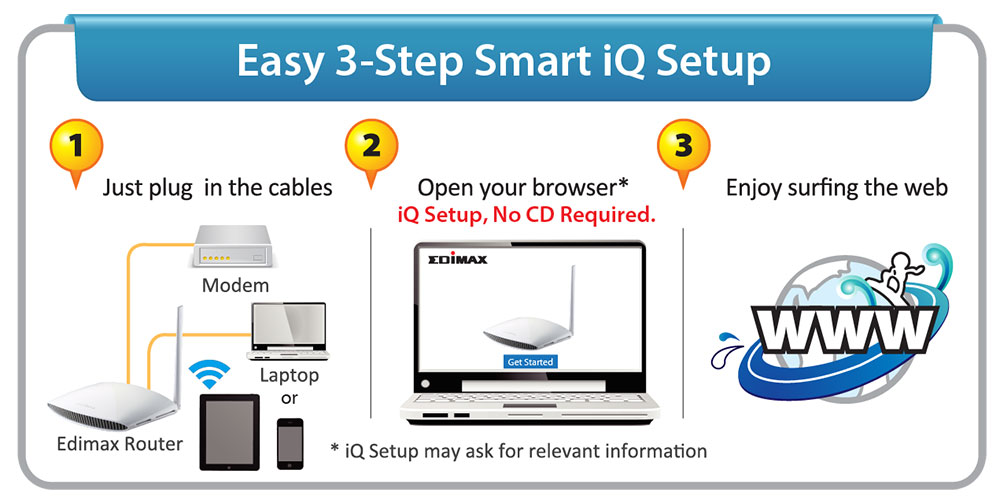
Simply connect to the router via your laptop or smartphone, open https://edimax.setup in your browser, login as administrator, and choose a mode of operation.

Wi-Fi Router Mode:

In this mode, you can simply connect the Edimax BR-6228nS to your modem and you can get upto 2.4 Ghz Internet access for your network devices. Lets say you have a BSNL modem without Wi-fi Support (or live in a very large house!) you will need a Wi-fi router to get Wireless internet accessibility. Now most of the ones available in market are very difficult to setup. But as mentioned, Edimax Router won't take much of your time.

Access Point mode:

Already have a router but still no reception? In access point mode Edimax can be connected to another router via Ethernet cable and provides accesibility throughout the area.

Range Extender Mode:

In this mode, the router can be connected wirelesslyto your existing network and can be used as a repeator. Can't understand? Lets say you have a modem on the ground floor but want internet accessibility on the second floor. That's when you need this mode to extend the range of your modem.

Wireless Bridge Mode:

This is a very useful feature that simply means that you can connect it to your smart TV or wireless speaker system ans create a Media server to connect all your devices. It can be connected via an Ethernet cable and will act as a wireless receiver. Now, considering the Indian scenario where the walls are quite thick, the alreadylow receptibility of smart devices can be increased using the Edimax router.

WISP Mode:

Did you got the Plug and Play Wireless Internet service provider and are not getting enough range! The WISP mode is a life saver in this case, where the device connects wirelessly to your WISP and provides 2.4 Ghz Internet access for your network devices.

How to Setup?

1. Plug the included power adapter into the device's Power port and switch on.
2. Ensure that the power LED is lit.
3. Use any device like Tablet or smartphone to search for a Wi-Fi network with the SSID "edimax.setup" and connect to it.
4. Open a web browser and enter the URL https://edimax.setup and click "Get Started" to begin the setup process.
Note: The default username is 'admin' and the default password is '1234'.

Real World Usage

Now, the above steps are already mentioned in the manual and anyone could read that. So, I took a step further and connected it to BSNL WiMAX as this is the internet provider most people use in India and is very difficult to configure with most routers available in the market. But the Edimax BR-6228nS connected like a charm.
I simply inserted the Ethernet cable from WiMAX into the ethrnet port of  Edimax 150N BR-6228nS router and followed the steps. It was completely hassle free installation and I could use the Wi-Fi on my phone on the third floor with the router on the ground floor!
Another feature that's worth mentioning is that this Edimax 150N BR-6228nS consumes very less power. It saves upto 30% of the power that's consumed by any normal router available in the market.

My Verdict

The  Edimax BR-6228nS is a value for many. With its multiple features and easy usage, it sure is a great investment. Priced at approx 2000 rupees and premium finishing, it is a really reliable device. Its less power consumption is an added benefit also. The Edimax 150N BR6228nS V3 is available from Savera Marketing in India and you can purchase it from Snapdeal for an MRP of Rs 1,999.
I give it 9/10.

Shivani Mishra
About the Guest Author:
An Engineer by profession and a writer by passion. Trying to solve others problems and learning in the due course.

Thursday, 30 April 2015

5-in-1 N150 Router from Edimax - Launch by Savera Marketing

'Let's Bring the Dead Zones to Life'

A Multi-function Wi-Fi solution which acts as Wi-Fi Router, Access Point,
Range Extender, Wi-Fi Bridge & WISP and supports IEEE
802.11b/g/n wireless standards

MUMBAI, India - April 28, 2014

Savera Marketing,one of the fastest growing IT distribution house in India, today announced the launch of 5-in-1 N150 Router - BR-6228nS V3 from Edimax.  BR-6228nS V3 is a 150Mbps 5-in-1 multi-function Wi-Fi solution which performs as Wi-Fi Router, Access Point, Range Extender, Wi-Fi Bridge & WISP and supports IEEE 802.11b/g/n wireless standards and provides significantly improved coverage with the High-gain antenna.

Features:
  • BR-6228nS V3
  • 5-in-1 Router, Access Point, Range Extender, Wi-Fi Bridge & WISP
  • Smart iQ Setup for smart, automatic and quick installation with no CD required
  • High Gain Antenna: Enhances wireless range and coverage
  • Guest network: Provides connectivity while isolating guests from your primary network.
  • Wi-Fi Protected Setup (WPS) Button: For easy one-click setup

Mr Gopal Pansari, MD and CEO at Savera Marketing said "With the launch of Edimax BR-6228Ns V3, we are offering a 5-in-1 solution for home and office users who are connected with multiple devices and facing the network connectivity problem. This router is one stop solution that can be discreetly plugged into any wall socket and this convenient placement allows one to increase the signal coverage of Wi-Fi network.  Let's bring the dead zones to life."

By operating as a router, access point, range extender, Wi-Fi Bridge or WISP, the BR-6228nS V3's flexibility meets the demands of any networking applications. The smart iQ Setup wizard makes setup and installation as easy as a few clicks. Impressive performance and a competitive price make the BR-6228nS V3 a cost-effective solution for home or small office environments.

Additional Features:
Edimax's Revolutionary iQoS
iQoS is Edimax's solution for a quicker, easier, and more effective way to manage Internet bandwidth. While Quality of Service (QoS) functionality is a common feature in routers across the market, typically only advanced users have the knowledge required to set up the complex parameters. Edimax though has redesigned QoS with user-friendliness and accessibility in mind. A simple and intuitive user interface allows users to arrange bandwidth priority settings in just a few clicks. With iQoS, you can enjoy gaming, video streaming, VoIP applications and BT clients at the same time without the usual nightmare of lag and interruptions. An original, efficient and effective means of managing your Internet bandwidth.

Multi-SSID & VLAN Support*
Multi-SSID enables users to configure up to five separate SSIDs in order to group and manage users according to your requirements. *Access point mode only

Guest Network*
Supports a guest network to provide connectivity while isolating guests from your primary network.
*Router mode only

About Savera Marketing
Savera Marketing Agency is one of the fastest growing IT distribution house in India. The company is engaged in marketing and distribution of various types of IT products, and is a key distribution market player with a nationwide reach, robust product portfolio and superior service in India. Formed as a local company in 1995, Savera continues its evolution today by striving for excellence with its products and services. From a humble beginning as a hardware dealer and service organization, Savera experienced significant growth by achieving a high level of customer satisfaction and staying on top of the technology curve. To know more, please visit www.savera.co.in

About Edimax Technology
Edimax Technology is dedicated to the design, development and manufacture of smart networking solutions. Since Edimax was founded in 1986, the company has grown to be among the world's leading manufacturers of advanced network communication products. Edimax is headquartered in Taiwan (Republic of China) and has been listed at the Taiwanese Stock Exchange since 2001. In 2003, Edimax was ISO 9001 and ISO 14000 certified. Edimax's product portfolio fulfills the needs of any networking and IP surveillance architecture or application requirements. To know more, please visit www.edimax.com

Wednesday, 28 January 2015

Troubleshooting WiFi Connection Problems


Wi-Fi is the most wonderful home convenience—except for when it isn’t. That’s why it’s a good idea to have a mental checklist on hand for common issues that might be causing the problem when your Wi-Fi checks out.
Everybody has their own favorite way of handling Wi-Fi problems, but here’s mine.


Reboot: The Basic Solution


The simplest reason is often the most likely cause of problems. If your router’s lights are not displayed in the usual order, turn off your router, wait five to fifteen seconds, and turn it back on again.  
This is also a good time to ensure that all your cables are connected correctly. As an alternative to simply switching the router on and off, first try disconnecting it from the power source. Now take out the cord that feeds into your router from the wall to deliver your Internet connection, such as a TV cable, ethernet cable, or telephone cord. Wait a few seconds and power the router on. Then wait another five seconds or so before connecting the Internet cable to your router again.  

Its Hot!


During this time you should also check to see if your router feels particularly hot. If it does, your router might have an overheating problem. Check to see that your router isn’t up against an obstruction that could be blocking its vents.
Maybe you placed it on another piece of tech that also heats up, or perhaps the router’s on a rug where it can’t properly cool down. Routers, like PCs and gaming consoles, are complicated electronics that need room to breathe.


Signal Drops


If your connection starts dropping only in a part of the house where the signal once came through loud and clear, there are a few things you can check. First, if your router has physical antennas make sure they are pointing straight up for the best possible coverage area.
If your router is near a possible obstruction like a metal filing cabinet, move the router to another part of the room or try elevating it a bit more.
Finally, you might try changing your router’s channel as other routers around you may be muscling in on your home network’s signal.

Lights and everything is good----Still not working


Your router’s lights show everything is working properly, but you can’t see your Wi-Fi connection listed on your laptop or smartphone. What gives?
Did you rename your router to something more personal like NoFreeloading? If so, your hardware may have been reset without you realizing it. This can happen due to a random anomaly, a firmware bug, curious children, or even your ISP.
Look at the bottom or the back of your router for a sticker with its original name—called the “service set identifier” (SSID)—such as LINKSYS WRTXYZ. Don’t forget to note the original password that’s also on the sticker.
Now check the Wi-Fi connections listed on your device. Is your router’s original name there? If you see it, connect with your original password. If that works, then login in to the admin panel and then change your router’s name back to whatever snappy title it had before. Just don’t forget to change the default password as well.
More security minded folks may prefer to use a PC to connect to their router directly with a cable and reset the name from there. It’s entirely possible that you’re router is not the only one named NETGEAR in the vicinity.

Reset: Yeah its scary

If all else fails, you may have to reset your router to its default settings. This should always be the last resort since resetting a router can have unintended consequences. Some connections, for example, may need to be reset on your service provider’s end—requiring a call to your ISP. Resetting your router will also wipe out any personalized settings you had, such as your SSID, control panel password, and network connection password.
Look for a button on the back or underside of your router. Typically these are small holes that contain a button within that requires a paper clip or some other small instrument to press. Once you’ve hit the reset button, wait a few seconds before releasing it and see if that fixes your problem.
If all else fails, you may have a hardware failure on your hands.

Thursday, 26 June 2014

Best Wifi Router: Buying Guide and Tips

You just got a new internet connection and are damn excited to get a WiFi router plugged into it and start downloading the internet but there is one small problem, you don't know which one to buy right? I know it happens and its certainly happening with you right now or you wouldn't have been reading through this right now.

Choosing the correct WiFi router in a reasonable price range is a bit tricky process, but I'm here to help you guys out by underlining a few key points that you should keep in mind while buying the best WiFi router for yourself, be it at home or at office.

ADSL or non ADSL???

To keep it simple if you are using an internet connection from either BSNL or MTNL, then you will need an ADSL router. A ADSL router basically lets you use internet via your landline cable and simultaneously make or receive a call through it. These routers come with an RJ11 port into which you can connect your phone cable. Though these two provide their own branded routers which are good enough for mild usage in your room or the one next to it but if you want something more then do read the points below.

The Bands

A WiFi router comes with two types of bands, single band and double band. Single band routers transmit signals at a 2.4Ghz frequency whereas a dual band router transmits on both 2.4Ghz as well as 5Ghz. The 2.4 Ghz is the most commonly used frequency and even transmits strongly to a longer range meaning a strong WiFi network in your area but is easily distorted by interfering devices, such as microwave oven or cordless phones, in or around your premises.
This is where you need to use a dual band router working at 5Ghz, it can give you strong signals in crowded areas such as colleges or offices but will compromise the overall area covered. So if you're operating at 5GHz, you would have to stay closer to the router for better fidelity.

Internal or external antenna?


In case you want Wi-Fi access in other rooms - through walls or glass partitions - opt for a router with one or more external antennas. 

The Device Compatibility

Almost every device these days has it mentioned on their packaging box or in their user manual that to which WiFi they are compliant of. A device may just work on the 2.4Ghz frequency or may  support both 2.4Ghz and 5Ghz. For example the Apple iPhone 4S, iPod touch, Blackberry Curve 9360, and Amazon Kindle support 2.4GHz only. On the other hand, the iPad, iPhone 5, Samsung Series 7 Slate and Motorola Xoom can work on the 5GHz band as well. So before spending extra on a dual-band router, check if your devices are equipped to handle 5GHz signals.

What is 802.11n?

802.11n is the current standard in wireless networking, so if you are buying a new router and not a second hand one, make sure that you go with an 802.11n.

Security type: Password Protection
If you are setting a password for your WiFi network then make sure that you select the WPA2 option. It is the highest level of security offered and is highly recommended. To setup a secure WiFi connection click here.

How many Ports will you need?

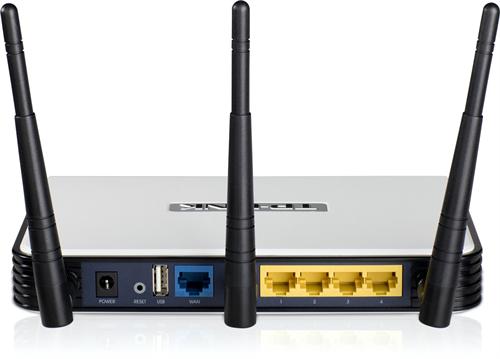
Most routers come with up to four Ethernet ports to connect PCs for shared internet access. The addition of USB ports means you can also connect external storage or a printer to the router, to be shared by devices on the network. The USB port routers are expensive so buy them only if you are in need of the ports otherwise it'll be a waste of your money.

Which Company?

Netgear, Cisco, D-Link Systems and Linksys are some popular manufacturers of Wi-Fi routers. Buying from any of these brands will more often than not guarantee good quality.Routers start from as cheap as under Rs1000 and go all the way into Rs20000 or more. So if you want a decent router without burning a hole in your pocket then click here.

Well these were the few points that I recommend and follow myself while buying a router, if you know of any other then please leave a comment I'll be more than happy to add them.


Saturday, 21 September 2013

How to Access Blocked Sites

Most of the people face this problem on their offices and colleges to open websites which are blocked by the management.
In many colleges,offices the management block some websites which are related to social network and entertainment.Like Facebook,YouTube, Twitter etc. In some offices they don’t allow any type of websites to access within their network. Because they feel workers and students waste maximum time on these websites. It is true but in some cases not because some of the students try to learn new things from YouTube. Reasons are whatever it may be here is the solution to this problem

Here I provide some best working methods to access blocked websites.

1. Proxy Websites


Proxy servers are useful to access to access any website blocked by the management.This is the one of the best method to access any website.Proxy server works as a mediator between you and website what you want to browse.After typing the address on these proxy servers it takes your request and redirects the page to the desired website.

The process of accessing website via proxy server is simple,just type the address of website you want to browse.

Some Working Proxy Servers:
  • www.hidemyass.com
  • www.proxify.com
  • www.ninjacloak.com
  • http://000freeproxy.com

2. Open Websites in Opera Simulator

Yes opera gives an option to test their mobile browser before install it on our mobile.We use that feature to access our favorite websites on restricted networks.

How to Open Blocked websites using Opera mini simulator?

1. First open the below link in web browser

http://www.opera.com/developer/opera-mini-simulator

2. It needs java plugin to run this simulator.If java is already installed on your pc then you can directly access websites.

3. Click on OK button to start the opera mini simulator

4. Now it launches opera mini simulator,type the website you want to surf and click on Go button.


3. Use Tor Browser 

Tor browser is mainly developed for the anonymous browsing,we use it for open blocked websites.It is available as a portable version so you cannot need to install it on pc.Tor browser is made of with Firefox source code and implemented by few anonymous proxy servers.

How to Use Tor browser to open Blocked websites?

1. First download the tor browser zip file from the below link
Download Tor Browser

2. Now double click on the downloaded exe file to extract it into your pc.

3. Now open tor browser folder and click on “start tor browser”simply then it starts the browser and show the status in its control panel.

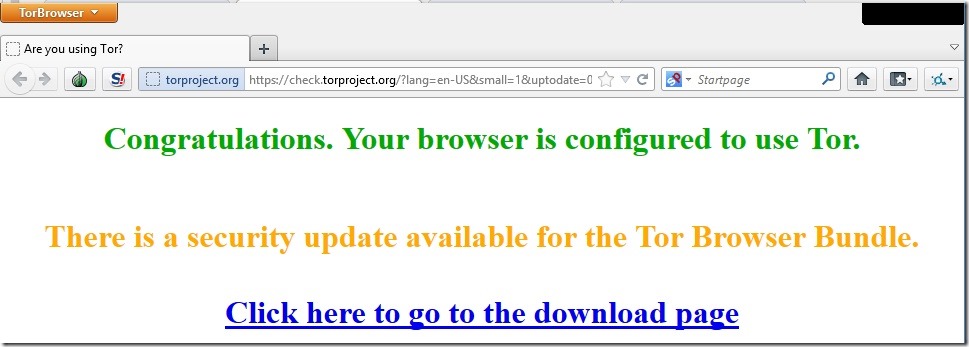
4. After that it opens the Tor browser which looks like a Firefox browser with a congratulations message

5. That’s it now you can access any website without any problem

So these are the sure shot methods which works perfectly on every windows PC without any problem. If you face any problem during usage of these methods or know of any other method except for these then kindly leave a comment.

Sunday, 2 June 2013

Top 5 3G data Cards in India

3G data dongles have become a need of the time, not only are they portable and convenient to carry giving you seamless access to the internet from anywhere you are on this planet, provided you have a network there, but also the growing demand of portable gadgets like laptops and tablets have propelled the market of dongles.
So today I'll compile a list of the top 5 universal 3G data dongles available in India for the simple reason that a a universal or unlocked dongle doesn't restrict you to use a particular network and pay for whatever plans they have to offer. Just switch to a different network if you don't like the services of your existing network.

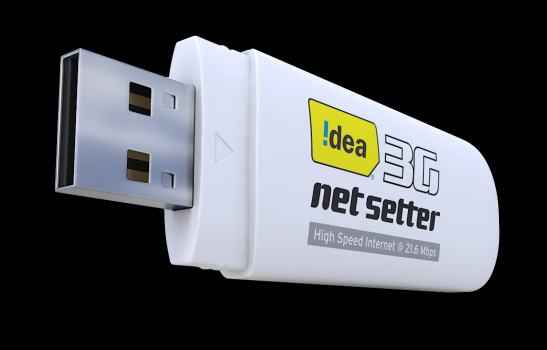
Idea 3G NetSetter: Rs 1599


Idea Netsetter 3G data card is fully unlocked and works perfectly on almost every carrier in the country. It has download speed up to 7.2 Mbps and upload speed up to 5.76 Mbps. This Plug and Play(Pnp) device has Receive diversity for fast & better performance. It also includes SMS service. 

Micromax MMX 353G: Rs 1449


Micromax the Indian brand thats making an impact after impact in the field of communication devices, well known for it’s budget phones has now come up with the MMX 353G. It supports download speeds of upto 7.2 Mbps HSDPA, upload speeds of 5.76 Mbps HSUPA, and expandable memory upto 16 GB. The best feature is that of voice calling meaning that you can make a call to anyone with the dongle plugged in, just like a cell phone. Also the installation comes with Google Crome so its another feature to add to your convenience. Buy it here

Huawei E3121: Rs 1597


The Huawei E3121 3G Data Card supports both 2G and 3G connectivity.
The device supports HSPS, UMTS, GSM, EDGE and GPRS as well. The device supports a Micro SD card of up to 32 GB as a storage media. The best feature of this device is that its a plug and play device means that you don't need to worry about any installations before use. It comes with SMS and Voice support as well as Soft Wi-Fi connection.
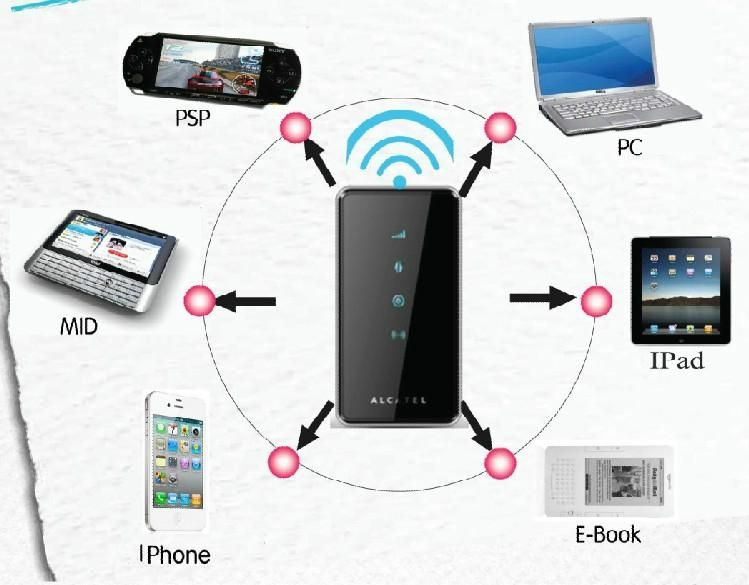
The built in Wi-fi feature enables it to be used as a Wi-Fi hotspot so that you can connect all your devices at home, school or at work through one dongle being used as a router. Wi-fi speed ranges from 85.6 Kbps to 14.4 Mbps. Buy it here


Huawei E303C HiLink: Rs 1627


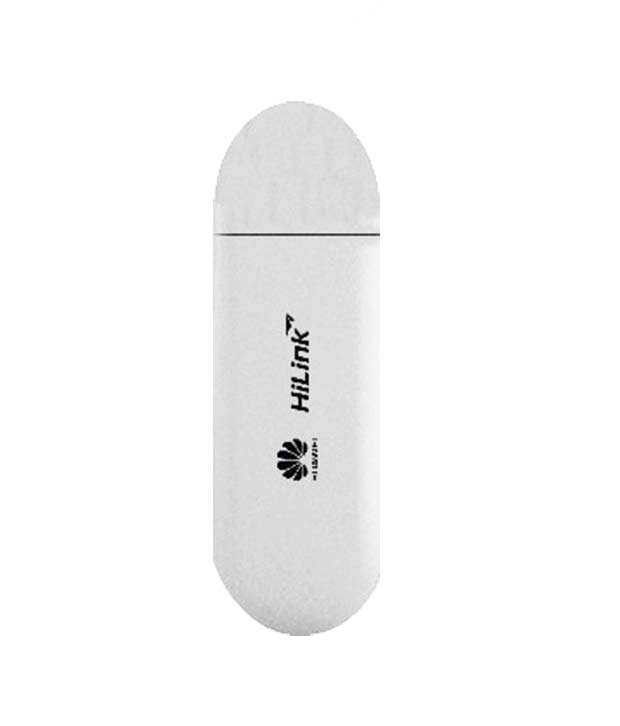
Huawei is the leading manufacture of data cards as we all know and this official product from the company has the most distinct feature discussed till now. With this data card you will have 2 GB of free data on Cloud+ and storage expansion upto 32GB as in other dongles. It works for all 2G & 3G SIM cards has download speed of up to 7.2 Mbps. Buy it here


Lava 730G: Rs 1538


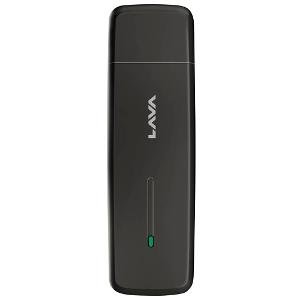
The Lava 730G is the most affordable and feature loaded device in this list. Includes all the features of a decent dongle like upto 7.2 Mbps HSDPA download speeds, upto 5.76 Mbps HSUPA upload speeds, Voice calling facility, SMS, expandable memory support upto 32 GB. Buy it here

So here was the list of the top 5 universal 3G data cards as per me, if you have any more suggestions apart from these then please feel free to suggest. As always leave your comments and queries.

Top 5 WiFi Routers in India under Rs 1500

If you are planning to go wireless with your current internet connection then you need a wireless router to set up a Wi-Fi internet network at your home. You will only need a basic Wi-Fi router for this having reasonable amount of network range as you are setting the network in your home only. There are some budget wireless routers available from good companies like Tp-Link, Netgear, Buffalo etc. that offers good price to performance ratio so that you can enjoy a decent Wi-Fi network connection at your home. Here are some of the budget Wi-Fi routers for you.
 All these routers have almost same characteristics and specifications supporting Wireless N technology with speeds up to 150 Mbps and having a 5dBI Antenna. All of them have 4 LAN ports and 1 WAN port for connectivity. Netgear Router goes somewhat ahead having more advanced security features. These routers will cost you under Rs. 1300 which is very much affordable. You can choose any one of them according to your desire or like.

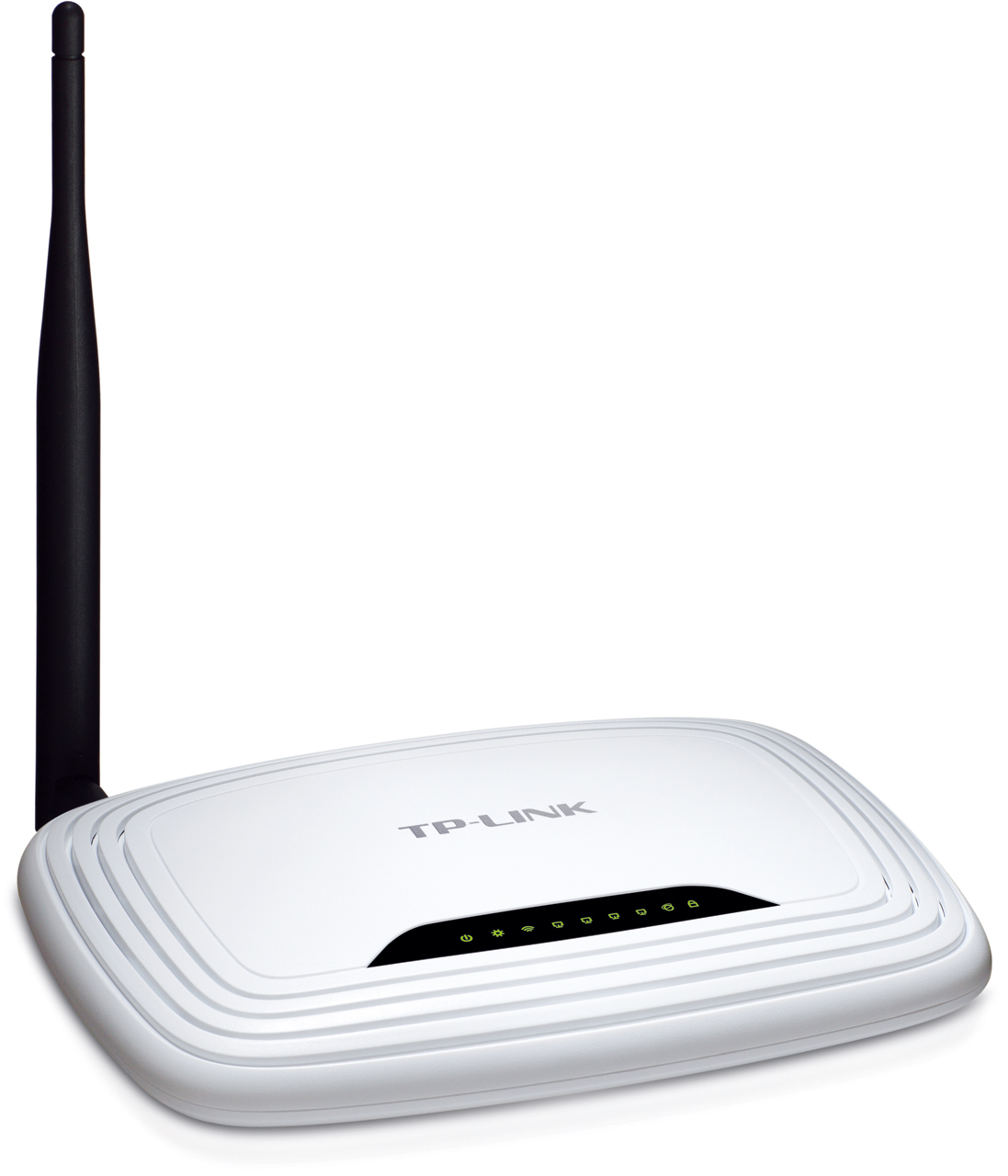
TP-LINK TL-WR740N 150Mbps Wireless N Router: Rs 899

Key Feature:

  • Wireless Security Encryption
  • Wireless speed upto 150 Mbps
  • Clear Channel Assessment (CCA) Automatically Avoids Channel Conflicts
  • Supports SPI Firewall
  • IP Based Bandwidth Control
  • Supports WPA / WPA2 Encryptions
  • WDS Wireless Bridge
  • Easy to Setup


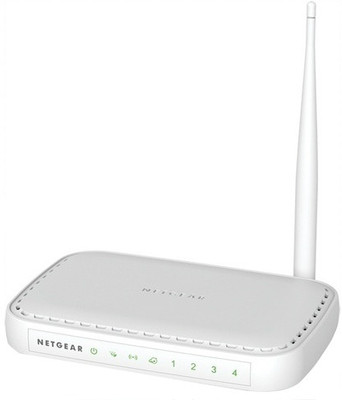
Netgear JNR1010 N150 Wireless Router: Rs 1044

Key Features:

  • Power and Wi-Fi On / Off Buttons
  • Easy CD-less Installation
  • Improved Wi-Fi Coverage
  • Live Parental Controls
  • Guest Network Access
  • Secure Connection
  • Internet Speed Optimization


D-Link DIR-600L Wireless N150 Cloud Router: Rs 1063

Key Features:

  • Real-time Browsing Record
  • Easy Setup Wizard
  • User Control
  • Online User Notice
  • Wireless Intrusion Alert
  • Cloud Router

iBall 150M eXtreme Wireless-N Router : Rs 1070

Key Features:

  • Wireless
  • Speed Upto 150 Mbps
  • Parental Control Security
  • Omni Directional Antenna


Micromax 440W Router with Power Bank: Rs 1530

 Key Features:

  • Creates Wi-Fi Hotspot
  • WEP/WPA/WPA2
  • 4400 mAh Li-ion Battery
  • USB Port Support
  • 150 Mbps Speed
  • Pair Upto 32 Devices
  • 4 MB RAM
  • 1 LAN Port
  • RJ45 and USB Connectivity
 
So guys here is the list of the top 5 best WiFi routers available in the Indian Market today, they are easily buy-able from any online/offline retailer.
Feel free to leave a comment regarding any query regarding the same or inform me if you have any better option than these I'll be more than happy to add them to my list.

Friday, 24 May 2013

Setting up and Securing your WiFi Networks

WiFi networks are so commonplace these days that most households have at least one network set up. Gone are the days when it required a lot of tech know how to set up such a network, because newer routers are basically plug and play and you hardly need to do anything. But the problem here is that when they’re just plugged in, not only you can access the internet, pretty much anyone else can. This not only might cause you to cross your bandwidth limit, but also opens up your devices to hacker access. Securing your wireless networks prevents all of this so you can have peace of mind. Fortunately it’s not a very difficult task and pretty much anyone can follow the tips and guidelines here.

Securing Your Wireless Network

When your router is first set up, the network name or SSID is usually named after the manufacturer like “linksys”. Make sure to go into router settings via the default IP address, through any web browser like Chrome or Firefox which is usually either 192.168.0.1 or 192.168.1.1 (more likely the later) and change the SSID to something other than the default name, whatever you like. While this doesn’t exactly protect your network, it makes it easier to be identified and doesn’t give the impression that the person who set it up is a novice.
  •  Add encryption and a network pass key 

The most common way to secure your wireless network is by setting up a network pass key. This allows only people who know the password to use the network. But that’s just half of the work done. Apart from the network pass key, there’s also something called network encryption of which there are 3 types, WEP, WPA and WPA2. The former two protocols are less secure and more likely to be bypassed, so make sure to set the encryption to WPA2. Unless you have devices using the WiFi network older than 2006 or so, you shouldn’t have problems connecting.
Always make sure that the password that you select for your wireless network is long and random mainly consisting of a combination of alphabets, numerals and figures, so that it can’t be cracked/hacked by any kind of hacker. And to test how strong is your password you can use CloudCracker service.

In this service you will be asked some data and that you need to feed in (not the password), and then it will try identifying your password (it’s done in the same way the hacker tries to find out your password), if it fails to find your password then you are ready to use your wireless network and if it finds out your password then you have no other choice left other than changing your password.

  •  Change your router’s default password

By default, all router settings, which include the all important network pass key, encryption and the like are easily accessible. So even if you’ve set up a password for the wireless network, it can be changed since the router username is something generic like “admin”. There is an online database with the default usernames and passwords for routers from all manufacturers, so it shouldn’t be too difficult figuring out what it is. Make sure to change this password so that only you can change important router settings.
  • Update your router firmwareDisable remote access and administering 

When we’re talking about security it’s not the first thing that comes to mind, but updating your router’s firmware can also secure the wireless network. These updates usually fix bugs and patch security vulnerabilities so keep the firmware up to date. It doesn’t hurt that there might be performance improvements as well.
  • Separate network for guests

If you are indulged in a business which allows visitors to use your Wi-Fi then it is sensible that you offer a guest network. By doing this the visitors will be able to connect to the internet without getting access to your company’s internal network. This will effectively help you in protecting your company’s information and also from any kind of malware and virus affecting your network or system.
Hide your network name
Whenever you get connected with a wireless network first and the foremost thing you need to do is change its settings, as according to the default setting wireless network’s name is published to make it easy to find and connect. But Service set identifier (SSID) can also be set to “Hidden” so that no one except you will be allowed to view the name of your wireless network. Hence it Helps to Protect Wi-Fi Network.

  • Use MAC address filtering 

 Finally, by setting up MAC address filtering, you can make sure that only known devices connect to your wireless network, thus making it more secure. Every device has an unique ID called a MAC address. Routers have the option to let only certain MAC addresses to connect, so that’s an added layer of protection. It’s possible to clone MAC addresses as well, nonetheless this is a very good way to protect your wireless network.

With the help of these easy tips you can easily Protect Wi-Fi network From Hackers. Make sure that your firewall is turned on and you can also use antivirus and anti-spyware software from Microsoft Security Essentials or Windows Defender on which you can totally trust. 
Feel free to ask any questions related to the same & if you have anything to add then do leave a comment.