

Subscribe For Free Updates!

We'll not spam mate! We promise.

Showing posts with label Power Supply Unit(PSU). Show all posts

Monday, 20 April 2015

Antec BP350PS 350W PSU Review and Specifications

In the streak of articles on PSU on our blog, today I've picked Antec BP350PS 350W PSU. Its one of the best pick in the budget PSU range. Its aimed at the very basic computer usage. As you know that at computers and more we not just talk about high  end stuff but we also keep in mind the requirements of people on budget.
I can assure you that this PSU will suffice all your needs expect for high end gaming. It can run any processor from Intel core i3 to core i5 along with a moderate GPU like GTX 730 or GTX 650. This small heavy duty PSU is even Haswell ready.
As you can see, the specs are quite impressive. Lets get into the details to know more about it.

Key Features

Dual +12V Rails: The Antec BP350PS comes with dual 12V rails which is quite like miracle in this price range. Most of the brands do not offer this feature and it provides an extra protection for your other components like your processor and GPU from the power fluctuations.

6 PCI-e Connector: It has the support for PCI-e connector so even though its not meant for gaming rigs, still you can connect a moderate GPU easily and enjoy.

4+4 ATX 12V Connector: This feature makes Antec BP350PS ready for any processor like i3 or i5 and its Haswell ready feature makes it even more compatible for Intel processors.

3xSATA Connectors:With this you can easily connect upto three HDD/SSD or a permutation and combination between storage drives and optical drives. This is plenty and you'll not have to worry about converting any of the peripheral connectors.

Pros:
Has OCP protection
Haswell ready
High price to performance ratio

Cons:
Only 75% efficient

Load Test

Now all said and done, lets see how it actually performs under load. The result came out quite impressive.
As you can see it performed efficiently upto 75-77% and still maintained a cool temp of 40-45C which means the 120 mm fan performs nicely.

My Verdict

The Antec BP350PS comes for Rs. 2500 and is totally value for money. So if your building a PC for moderate home usage, this should be your first choice. With 75% efficiency and support for 3 HDD the Antec BP350PS is reliable and efficient. I give it High ratings.
So this pretty much sums up the Antec BP350PS review and specifications. And as always any suggestions or queries are welcome.
Shivani Mishra
About the Guest Author:
An Engineer by profession and a writer by passion. Trying to solve others problems and learning in the due course.

Saturday, 18 April 2015

Antec BP450PS 450W PSU Review and Benchmarks

A few days back I received the Antec BP450PS 450 watt PSU for review. Very much like the previous VP500PC that I'd reviewed this one comes from a family of budget Power Supply Units and is aimed at the ultra budget user who doesn't want to compromise on quality and need a stable performance from its system.
The unit looks quite well built and well packed with no fuss, apart from its long product name.
So lets take a quick look at the specifications along with its key features before we see what it really has to deliver off the paper.

The Specifications of the unit are quite impressive and seems promising. To highlight a few lets take a look at the Power Distribution and Key features on the BP450PS.

Power Distribution

Before we look at the key features the point worth noticing is that the combined output of both the 12V rails is 396W which is substantial share of the total 450W power promised by the PSU. This shows that it is ideal for heavy and power consuming components like any of the AMD FX series processors or the Radeon GPUs as now the key components in any computer work on the 12V rail and not on the 3.3V or 5V.

Dual 12V rails: The Antec BP450PS 450W PSU comes with a dual 12V power rail configuration and this is a very good safety feature when it comes to protecting your components like processor and graphic cards from any voltage fluctuation or over load. Its a very welcome step at this price point as it will give the user an extra layer of protection especially in India where the voltage does fluctuate many times a day.

Latest Standards: If you look at the label closely you see that the power output on the 12V rails ie 396W, is greater than that of the 3.3V and 5V combined which is just 115W. It indicates that it is based on the latest standards and technology of the PSU world. So Antec is not selling you an old PSU in a new casing. This is a brand new product and not a re-branded component from their storehouse.

6+2 PCI-e Connector: It comes with one 6+2 PCI-e Connectors which makes it an ideal unit for using with any of the latest mid to high range graphics cards. You can easily run a mid range graphic card that uses a 6 pin PCI-e or a 8 pin PCI-e connector making it an ideal choice for gamers who want sheer power and no hassle from their computers.

4+4 ATX12V Connector: This feature not only makes it ideal to be used with power hungry processing beasts like the AMD FX 8350 Octa-core processors but also with high end processors/motherboards that require a combined 4+4 ATX12V CPU connector also known as a 8-pin EPS12V connector.

4xSATA Connectors: This is a common in a 450W PSU but its worth mentioning over here as it is available at a very competitive price tag unlike other which cost double than the BP450PS. With this you can easily connect upto four HDD/SSD or a permutation and combination between storage drives and optical devices. This is plenty and you'll not have to worry about converting any of the peripheral connectors for powering your devices making it ideal for a mini home server PC as-well.
The unit is surely designed to utilize all the 500W and not just a sham rendering the user unable to run most of the components in absence of the appropriate connectors.

Pros:
  • Has OCP protection
  • Comes with one 6+2 PCI-e Connector
  • New technology and not a re-branded unit

Cons:

The Load Test

I always like to put every thing that I get for review through a load test so that we can know how good or how bad the unit actually is. So not going by the brand name and trusting the Continues power 450W logo on the pack I put the provided unit through a load test at varied levels of  loads.
I kept the PSU under 20%, 40%, 60%, 80% and 100% load to determine the actual output in real world tests and applications.
Each voltage rail's output was recorded under varied loads and the entire output was kept in the "Total" column.
The results, were quite impressive though

The Antec BP450PS passed with flying colors! Not only did all the rails delivered the promised outputs at varied loads but the total value was beyond my personal expectations from an ultra budget power supply unit. For example, at near 100% load the total wattage delivered was fascinatingly 448.9W which is minutely less than the promised 450W and obviously nothing is fully efficient so this is a great score.
Also during our test we witnessed a 74%-75% efficiency along with the PSU staying under 40 degree Celsius with the room temperature at around 36 degree Celsius showing that the 120mm quite fan does it work pretty well and yes it did not sound like a jet engine running, it was indeed cool and quite as promised by Antec.

My Verdict

The Antec BP450PS is roughly priced at Rs 2400 in India and is aimed at the ultra budget to budget users. With a continuous 450W output working with near 75% efficiency along with latest architecture and a dual 12V rail it is an ideal PSU for those looking at a decent and reliable power supply unit for their home. office or medium range gaming built. You can pair a powerful processor like the AMD FX 6300 and R7 250 1GB DDR5 GPU or an Intel i3 with a GTX 750ti and in some cases play wild and stretch the PSU to its limit with a GTX 960 if you are not using too many fans and HDD in your built.
I strongly recommend that Antec BP450PS to anyone who wants quality and has around Rs 2500 to shell in his pocket.

Thursday, 19 February 2015

How To Choose the Right Gaming Cabinet

Will choosing the wrong cabinet for your system ruin your gaming experience completely? Probably not. But choosing the right one will enhance it many times. So, lets discuss the points you should keep in mind before buying a cabinet for your rig.

The Right Size

When it comes to cabinets, one always want something that requires less space for accommodation. You can go for mini-ATX or micro-ATX, if youre bulding a system based on Intel's 3rd gen. But for enthusiasts a mid tower is a better option as it provides more room for different components and better airflow. Full ATX cabinets are larger and good for workstations or serious gamers who are bound to plug multiple drives and add-on cards to the system. So before buying the cabinet, be sure about the type of system you are building.

Build quality & Aesthetic appeal

Everyone has a different taste when it comes to looks. The average user chooses a cabinet by its outside looks. Determine whether you'll want a discrete, sleek exterior design or if you'd prefer something more flashy and edgy. Bling can look great when done right, but sleepers have just as much potential to awe their onlookers. But along with the looks the built quality should also be considered. The first characteristic of a good cabinet is its sturdiness. The last thing you want is a cabinet that isn’t stable. Look for cabinets that have use high gauge metal. The sheets of metal used on the cabinet should be thick.Poor quality cabinets tend to vibrate when fans, drives and other moving components start running. The end result is a very noisy cabinet. When you’re spending a large sum of money on a new computer, it’s only right to spend a little more than the leftovers on a cabinet.

USB 3.0 Support

USB 3.0 is a new feature being offered by most motherboards these days. This feature lets three times faster data transfer than normal ports. So, make sure your cabinet offers USB 3.0 support on the front panel or you'll have to plug your drives everytime at the back.

Ease of Installation & Room for Big cards

Once we buy a cabinet we don't wanna change it everytime we decide for an upgrade.Earlier all cabinets could accommodate almost all cards. But with the lauch of Radeon 6950 and 6970, longer cabinets are needed. so look for bigger cabinets. also extra room always helps in ease of installation and cleaning. Good cabinets come with thumb screws and tool free locking features so you don't need to use tools everytime you wanna install something.

Fans, Vents & Dust Control

Most cases come with one fan and spot for other fans in different locations. Look for cabinets with fan speed controllers. Case fan speed controllers can help keep things quiet when it's time to get work done, but can easily be mashed into gear for serious gaming. Now more fans means more dust. Many cabinets these days have large vents or perforated panels that allow air to flow through the cabinet, but this also lets dust settle inside the cabinet. One of the neat things that manufacturers are adding to all their panels are fine nets that block some of the dust but at the same time don’t block all of the airflow

Cable Management features

Rubber grommets: Cable management accessibility is huge and will make your life easy.
Back-plate spacing: Make sure you try to judge the depth between the back of the motherboard and the right side panel. Anywhere in the range of 25mm should be enough room for the fatter cables. This space is normally listed on the specs page for the case.
Rear-facing drive bays: These allow you to route cables through the back of the case, ensuring they don't obstruct precious airflow and keeping them out-of-sight

Water Cooling Support

Okay you dont need water coolers now but who knows you might require that in future. Hence look for cases that come with gaps cut into them at the back which allow water pipes to run into the cabinet.

Power Supply

Years ago, almost all cases came with power supplies in them (Antec comes to mind). This is now the exception, not the rule. Nowdays, most good quality and expensive cabinets don't come with PSUs. Ideally, spend separately on a power supply. Quite often, with cheaper cabinets especially, power supplies bundled with cabinets are poor performers and don’t provide the claimed power output.

So, this is all I had to say about buying the right gaming case. Hope it was helpful. And for those who are looking for a straight budget solution, see our list of Top five gaming cabinets under 5000.
Shivani Mishra
About the Guest Author:
An Engineer by profession and a writer by passion. Trying to solve others problems and learning in the due course.

Saturday, 14 February 2015

Antec VP500PC PSU - Reviews and Benchmarks


After a long wait and obviously long searches both on and off the net I managed to find a budget PSU that is packed with enough punch to power any medium to high end computer PC, the Antec VP500PC 500Watt PSU. I know that name sounds a bit to tacky and clumsy but it sure has the stats to impress anyone around delivered both through quality and quantity.
So before we dig deep into under the hood and find out what all it has to deliver, let’s take a quick glance at the specifications.

Going by the stats this seems like a very promising PSU with a very light price tag. As it is too good to believe I looked at it a bit more closely.

The Power distribution


The most prominent feature of the VP500PC is that the 12V rails deliver a total of 408W which is not only a significant share of the total 500W delivered by the unit but is also greater than the combined value of the 3.3V and 5V rails showing clearly that it is based on latest architecture which makes it compatible with new components and most importantly the manufacturer has not compromised on quality factor. A few key connectors are as follows--

Dual 12V Rails: The Antec VP500PC comes with a 500watt power and as we can see in the image alongside the module has two 12V rails that deliver an appear-age of 24A and 21A respectively.
This is a very good tactic used by Antec to give extra protection to its consumers at such a low price. The main advantage of having multiple 12V rails on any Power supply Unit is double protection from OCP ie Over Current Protection. What is OCP? Well to put it straight, Over current protection is a safety feature that prevents your power supply from exceeding the amount of current present on each rail. This can happen if the component or device requires more current than available on 12V Rail of SMPS and causes the SMPS to overload, which can result into crashing of systems, burning of cables or explosion of your power supply! If OCP is present on the SMPS then the SMPS will shut down if the current on 12V rail exceeds it recommended rating.
So by putting a dual 12V rail system Antec has played it smart and given an extra layer of protection to the system that it'll be employed into. Thumbs up to that as this feature is rarely found in budget PSUs.

6+2 PCI-e Connector: It comes with two 6+2 PCI-e Connectors which makes it an ideal unit for using with any of the latest mid to high range graphics cards. You can easily run a mid range graphic card that uses a 6 pin PCI-e or a 8 pin PCI-e connector in SLI or CrossFire making it an ideal choice for gamers who want sheer power and no hassle from their computers.

4+4 ATX12V Connector: This feature not only makes it ideal to be used with power hungry processing beasts like the AMD FX 8350 Octa-core processors but also with high end processors/motherboards that require a combined 4+4 ATX12V CPU connector also known as a 8-pin EPS12V connector.

4xSATA Connectors: This is common in a 500W PSU but its worth mentioning over here as it is available at a very competitive price tag. With this you can easily connect upto four HDD/SSD or a permutation and combination between storage drives and optical devices. This is plenty and you'll not have to worry about converting any of the peripheral connectors for powering your devices making it ideal for a mini home server PC as-well.

The unit is surely designed to utilize all the 500W and not just a sham rendering the user unable to run most of the components in absence of the appropriate connectors.

The Load Test


To finally see how much the VP500PC had in it  to deliver and not just going by the outer looks and the hefty 500W claim on the box, I put the provided module through a load test. I kept the PSU under 20%, 40%, 60%, 80% and 100% load to determine the actual output in real world tests and applications.
Each voltage rail's output was recorded under varied loads and the entire output was kept in the "Total" column.
The results, were quite astonishing though

The Antec VP500PC passed with flying colors! Not only did all the rails delivered the promised outputs at varied loads but the total value was beyond my personal expectations from a budget power supply unit. For example, at near 100% load the total wattage delivered was fascinatingly 497W which is just 3W less than the promised 500W and obviously nothing is fully efficient so this is a wonderful score.
Also during our test we witnessed a 82%-84% efficiency along with the PSU staying under 40 degree Celsius with the room temperature at around 36 degree Celsius showing that the 120mm quite fan does it work pretty well and yes it did not sound like a jet engine running, it was indeed cool and quite as promised by Antec.

My Verdict


Priced at just Rs. 3100 the Antec VP500PC 500W PSU is a perfect combination of smart implementation of technology and quality production, ideal for a variety of consumers ranging from medium users to hardcore gamers. Using this PSU will not increase a budget build's cost significantly but will definitely increase the productivity and lifetime of the other components used substantially.
For those who can't distinguish between fact and fiction of PSUs the Antec VP500PC is the blind choice, light on pocket but heavy on performance.
I give it a 9.5/10
The video review is now available here

Saturday, 7 February 2015

Different Connectors on PSU Explained

You know what is the required wattage that you want on your Power Supply Unit (PSU), you got the right brand and now you came home happily just to find out that the PSU doesn't have all the required connectors for you high end gaming rig! Hurts by just imagining right? Don't worry I'll not let such a nightmare happen with you guys as long as you read my blog obviously.
Today I'll explain the various connectors and cables available on a PSU and their usage so that you don't buy yourself a unit that doesn't match up with the rest of your parts.
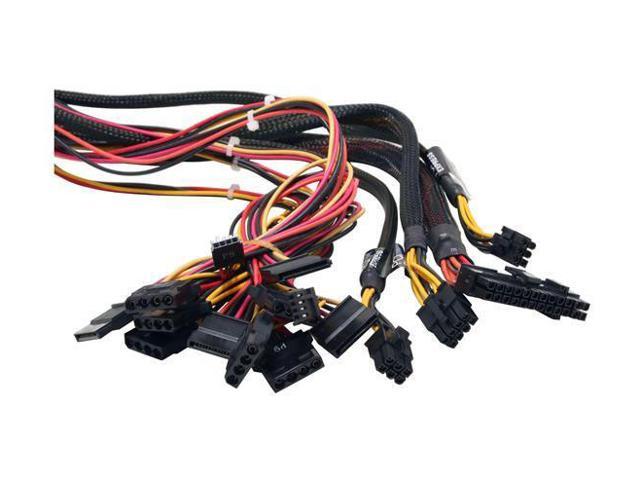
The following is the list of all the connectors available on a Power Supply Unit:
  • 20 + 4 Pin ATX or Motherboard Connector
  • ATX 12V or the 4-pin CPU Connector
  • EPS 12V or the 8-pin CPU Connector
  • PCI-e 6-pin or PCI-e 8-pin power connector
  • SATA Power connector
  • Peripheral Connector
  • Floppy Drive Power Connector


20 + 4 Pin ATX or Motherboard Connector

This is the most common cable and is universally found  on all the power Supply Units available. It is the largest of the lot and has 24-pins which goes in the motherboard socket to power it. Some motherboards require all the 24-pins and are called ATX12V 2.x motherboards whereas some use only 20-pins and are called ATX12V 1.x motherboards.
The latter is made by removing the extra 4-pins off the connector and is used by only old models which I'm sure you'll not get if you are building a new rig.

ATX 12V or the 4-pin CPU Connector

This is the 4-pin connector which supplies electrical current to your CPU and is mandatory to connect in the motherboard provided you are not using the EPS12V connector which is explained below. The ATX12V 4-pin connector is used by a majority of processors be it Intel or AMD. 
Even the power hungry FX series by AMD requires only a 4-pin CPU connector uptil the hexa-core series. So this is more important to have in a general picture best if you have a pair of these on the PSU.

EPS 12V or the 8-pin CPU Connector

This is the same as above just that it has double the pins that is 8-pins and can provide more current to the processor, hence is required by heavy duty processors like the AMD FX 8350 or Intel i7 5960X. 
This connector is not available on all PSU nor is available on all the motherboards. Some Power Supply Unit come with a pair of ATX12V 4-pin connectors to be used as a single EPS12V 8-pin connector just in case but it is always recommended that you buy a PSU with a EPS12V 8-pin connector in-case your motherboard and processor require it.

PCI-e 6-pin or PCI-e 8-pin power connector

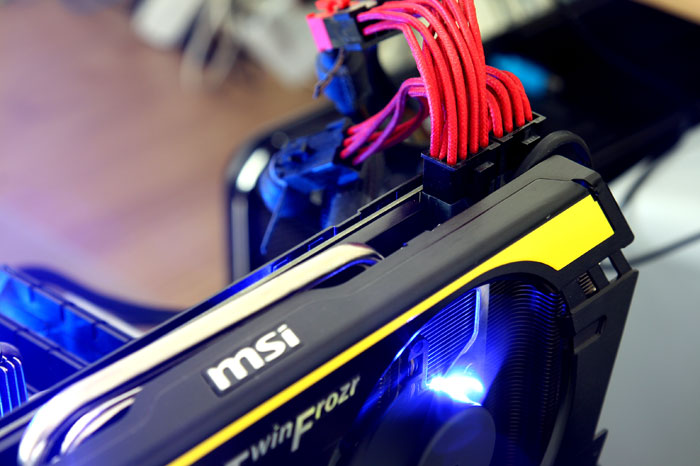
If you are a gamer, a graphic designer or anyone who needs high graphic power mustered through big graphics card then this is the section you must read. These connectors are used to power the mid range to high end graphics card used in a desktop PC. Budget and low-end graphics card do not need them as they draw their power from the motherboard PCI-Express x16 slot only.
The 6-pin variant is used by all the graphic cards that require extra power whereas the 8-pin is required by high end graphics card. All power supply units come with at-least one 6-pin PCI-e connector whereas the higher wattage or newer ones come with multiple cables of having the same connector head. The new PCI Express 8 Pin cable can provide maximum of 150 Watts power which is the double that of the PCI Express 6 Pin cable i.e. 75 Watts. This is the reason why its used by only high end graphics card and rarely by mid range cards.
Also if you have only one 6-pin PCI-e connector and are in a need of two, you can convert any of the peripheral cables to a 6-pin connector with an adapter and save yourself the expense of a new PSU.

SATA Power connector  

Its generally a flat 15-pin connector used to power your Hard Disk Drives (HDD), Solid State Drives (SDD) or your DVD drives. A PSU should ideally have the same number of SATA connectors as the number of HDD/SSD you'll use. Just in case you need an extra SATA cable just convert any of the peripheral cables into one with an adapter.

Peripheral Connector

Peripheral 4 Pin Molex Connector is used to provide power to IDE devices and other peripherals like Fans, case lights etc. You can also use this Molex 4 pin connector to power other devices like SATA devices, Graphics cards etc. by the use of converters or adapters e.g. Molex to SATA power connector etc. 

Floppy Drive Power Connector

This 4 pin power connector is used to power floppy drives. Floppy Drives are not being used commonly, but in some cases they can prove very useful.

Well that are all the connectors that exist so far and their availability varies with respect to brands and wattage. Cheap PSU have less of these whereas a expensive PSU of the same wattage may have more. So choose accordingly and if you are not short on budget just follow one line, more wattage is always better!
Feel free to leave a comment or a query if you have one.

Monday, 2 February 2015

How to pick up the Best Power Supply Unit (PSU)

Continuing with my series of helping you all out with the various PSU related problems and dilemmas in computers, today we will discuss that how you can buy yourself the best power supply unit for the buck you are going to pay and keep your machine running smooth and efficient for year to come. And yes you don't need to be a rocket scientist to understand all this so wipe of that line from your forehead.
All of you are more or less aware of the fact that PSU or SMPS is the most vital part of your computers and also you must be aware with the basic functioning of a power supply unit.
Below we'll take all the basic points one by one and in the end give you a clear picture of how you can get and choose the best power supply unit.

The Maximum Power

When you buy a PSU first of all determine the total amount of power that it will need to supply to all your components, this will help you get an understanding of what exactly are you looking for. Use this calculator to know the amount of power you actually need.

Now that you have got to rough idea of the total power you need I'd like to inform you that always buy a power supply unit with a higher wattage than that you require. Why? Well its simple as per experiments and tests its proven that a PSU only delivers maximum efficiency when operated at 40%-60% of its maximum load capacity. So if not the double of what you need always try to keep a little extra juice in the unit to get maximum efficiency. The silver lining for Indians and other Asian citizens is that a PSU works best at 230V supply which is the standard supply voltage in these countries.

The Concept of Rail

Whenever you choose a power supply unit just look at the label first where all the values of current is listed on various voltage rail. The first thing that you need to make sure is that you are getting more than atleast 20A on the 12V rail. This is the lifeline of your computer and needs the maximum amperes enlisted on it possible, the higher current on the 12V rail the better.
Now lets look at the second feature, I've taken this label for reference purpose for you guys, now look closely. A modern PSU of newer design typically has +3.3V & +5V combined power less than that on the +12V rail. This is simply because the two major power hungry components in your system are the processor and the graphics card which happen to run on the 12V rail only! So it is mandatory that your power supply unit supplies them with high values of current. If you get a PSU that has more current ratings on the other two rails in comparison to the 12V one it means that the PSU is based on older technology and is not optimized for new generation hardware.

The Number of Connectors

Every power supply unit comes with its own number of connectors that fit into various plugs in the machine to power up all the components. Be sure to do an inventory of all the connectors in your system. Don’t forget to take into account possible future growth, particularly with SATA and PCI Express connectors. Better to have four 8-pin PCIe connectors, and use them only in 6-pin mode, than to not have them and discover that new high performance graphics card you just bought requires two 8-pin connectors. Similarly, ensure the PSU has a minimum two extra SATA connectors beyond your existing installation.
Note that some power supplies come with multiple ATX12V connectors – those connectors used to deliver additional dedicated power to the CPU. Some lower end motherboards only have a single 4-pin ATX12V connector, while higher end boards have an 8-pin connector.Most PSUs have a split 8-pin, in which either 4-pin half may be used in a motherboard with only a 4-pin connector, or may be combined to supply 8-pin ATX12V. A few PSUs ship with dedicated 4- and 8-pin connectors, so you use whichever one you need.

Noise & Efficiency

The noise produced by a PSU is a key feature as either it can run very quiet giving you a productive session on he PC or turn your computer into a jet engine! The noise produced by a power supply unit is directly proportional to the heat produced by the unit as the fan rotates more to keep the temperature down.
Let’s say you have a system that runs at 70W idle with a 500W PSU. If you drop in a 800W PSU that’s equally efficient, your system will still run at 70W while idling. The system consumes no more power at idle just because you have a PSU with a bigger maximum capacity, assuming both are equally efficient. The bigger PSU gives you more headroom – it will run more quietly and generate less heat when it’s drawing 500W. So having a little extra capacity headroom may reduce noise levels and even generate less heat.
Efficiency and its advantages I've already explained in detail in my previous article, so simply buy a unit that is 80 Plus certified. Even a 80 Plus standard PSU with low wattage is more efficient than a higher wattage non certified local manufacturer's PSU.

Size Matters!

So you’ve just bought that lovely 950W, 80-plus gold certified power supply. It’s heavy and solid feeling, and has all the connectors you ever would want. So you go to install it in your PC chassis, only to find out that you can’t have your hard drives and the power supply installed at the same time. Oops! PSUs actually come in different physical sizes. The size doesn’t matter much if you pop it into a gigantic, full tower case. But a number of mid-tower cases have constrained PSU spaces that are opposite the optical or hard drive bays. Buy a PSU that’s just a little too long, and you’ll find yourself unable to attach SATA drive connectors.
Bottom line: be sure to check exactly how much space you have, and the physical size of the power supply, before dropping hard coin on that new PSU.

Which is better Modular or Non Modular?

A modular PSU is basically just another power supply unit with detachable cables. You can plug in the required cables to the components and back to the PSU and leave the unused cables unattached to the unit giving you a cleaner and tidier rig which would otherwise result in a bunch of loosely hanging wires that you might just fold and spiral into a corner not only making it look ugly inside but may also cause heating issues at worst.

So its always recommended to buy a modular PSU if you are not going to use up all the connectors available on the power supply unit. The downside is that its expensive than its non-modular counterparts, so buy them only if you are left with spare money. Don't waste your money on a modular PSU by compromising on other important features.

My Thoughts:
Above I've given you all more than you can use to buy an ideal PSU for your PC, though its just the water's surface that we've touched. Follow these steps and you can never go wrong in your purchase of a power supply unit ever....if you do then maybe you didn't read my article properly.
So as I always say do leave a comment and if you have a query feel free to ask.

Saturday, 31 January 2015

80 Plus Certificate on PSU: Meaning and Advantages

Amongst the many confusing labels and terms in the world of computer hardware one is very commonly come across and more commonly ignored even though its something that can help you save your money and i mean a lot of money! The 80 Plus certificate on Power Supply Units or commonly called as PSU.

The 80 Plus label is all about the efficiency of your PSU, it is an indication to the consumer to how efficient and reliant the power supply unit actually is. A 80 Plus certified module means that it';; deliver at-least 80% efficiency to the consumer with Bronze, Gold, Silver and Platinum as a sub rating varying from 81% to 89%!
As the work of a PSU is to convert the AC supply from the wall socket to DC supply for all the components in side your rig to consume and work, it wastes some power in this whole process. Hence a higher efficiency is always desired from any PSU with the efficiency being determined by the simple formula of:
Efficiency= DC power/AC power

Lets take an example if your PSU is giving 250W as an output to your PC and withdrawing 350W from the main supply then its just 71.4% efficient! And yes local vendors have the same statistics on their PSU that is the reason none of them come with a 80 Plus sticker on them, another reason why I don't encourage nor recommend cheap PSU to all you guys.

Why should you buy a 80 Plus PSU?
The certified SMPS or PSU have basically two advantages in general:
  • Higher Efficiency
  • Low heating issues
The power supply unit with higher efficiency results in low electricity bills. Using the same exaple as above if you replace that module with a 80% efficient unit, you'll be pulling out only 312.5W from the main wall supply saving 37.5W. In the long run that is if you use your PC at a stretch like for a day or a couple of days this saving becomes noticeable and ultimately pays off for the higher inital cost of purchase. So buy only a 80 Plus certified PSU.
In general from efficieny point of view the certificates are:
Platinum > Gold > Silver > Bronze > Standard

The second advantage is that of less heat dissipation. In my first example we are dissipating a 100W as heat while in the second one we come down to just 67.5W which gives us a  37.5% decrease in the total heat produced by the Power Supply Unit. Everyone knows that cooler a computer better is its performance, so if your PSU is cool that eliminates on component to worry about for producing heat and then adding fans to cool it down. This is directly helping you in reduced cost of additional fans and expensive cases if you are on budget.
Apart from these two a cooler and efficient PSU also means that you'll have a safer system with a stable output and supply to your components and also prevents the wall socket from burning at high loads.

Wednesday, 21 January 2015

How to know if your Power Supply Unit (PSU) is failing

You have recently started facing a lot of odd issues with your computers and none of them are performance related but related to some very basic functionality such as turning the PC on or off.
If you are in this bracket then you might be facing a malfunctioning or at worst a dead Power Supply Unit or PSU, these days Switch Mode Power Supply or SMPS are used aswell.
First thing first how will you identify if its related to your PSU or not? The answer is simple if you are facing any of the issues below then you migh be in a need of a new replacement unit.

  • System start-up failures or lockups: If your PC is not booting up even if you have pressed the power button with the monitor etc powered on or the boot up process halts/freezes mid way then you need to check your PSU for sure.
  • PC takes a long time to shut down or Boot up: A noticeable change rather increase in the time that your system takes in booting up or shutting down is a very strong indication that the power unit is the culprit.
  • Spontaneous rebooting or intermittent lockups during normal operation.
  • Memory Errors: Your system shows memory allocation or process execution error multiple times quite frequently even during day to day work.
  • Hard Disk Drive (HDD) fails: If you experience a total freeze and have to shut down the system by manually pressing the button followed by a no red blink of the LED on the cabinet then your HDD just stopped spinning telling you that it didn't receive the power required hence your PSU failed.
  • Fan is not spinning: The fan just stopped spinning along with a over heated PC! That's a real bad news, shut it down quickly and get a new Power Supply for yourself.
  • USB devices are not working: Especially those that rely on the USB port for power like an external HDD or a cell phone and even memory cards. Also you may experience a sudden freeze of operations on your system when you plug in these devices.
  • Electric shocks that are felt when the case is touched
  • BIOS beeping codes detected: This you'll face during the booting process when the computer POST, it'll beep multiple times and finally boot up or it might not even showing that their is insufficient power.
  • Smoke: You see a little or lot of smoke coming out of your system that's an indication of over heating and a faulty power supply can strongly be the root cause.
All these symptoms indicate strongly to a faulty power supply in your system, so if you are facing any of these then do put your PSU/SMPS on the troubleshooting checklist.
Always choose a good PSU/SMPS for your system so that it stays stable and can power all your components. I hope this article served your purpose, for any other query or to add something more to this article that I might've missed upon ,do leave a comment.

Sunday, 19 May 2013

How to choose the Right Graphic Card

Modern Graphic Cards are intimidating pieces of hardwares with a lot of stuff packed under their hood. Though they are tiny maybe huge even these days but they all come with a lot of confusion making it really very difficult to buy the right one.
So today we'll take a look at a few things that will help us choose the right graphic card for our PC. Before we proceed let me tell you come key features that are the basics of a graphic card:
  • A DDR5 memory GPU is always better than a DDR3 or DDR2, higher the number means that faster is the processing of that card.
  • Greater the Clock speed faster and better the card, a 810Mhz GPU is better than a 675Mhz one.
  • Connecting your graphic card through the HDMI port to the monitor is a better option than VGA or DVI port.
  • Brands like AMD/ATI have a series based production so the higher the first two digits in their graphic cards the better & latest the card will be like AMD HD6450 is an older and slower card than AMD HD7970. So always look at the series like HD6XXX, HD7XXX etc
Now that we are clear with the basics lets look at the most important points. Here are six important ones:
  1. What types of games do you play?
  2. What other applications do you run?
  3. What is your budget for a graphics card?
  4. What is your monitor's display resolution?
  5. What is your PC's performance level?
  6. What is the Power Supply?

  1. What Types of Games Do You Play?

    Some types of games demand more of a graphics card than others do. Here are rules of thumb that generally (but by no means always) hold true.
    If you play First Person shooter games like Crysis

    3 or Resident Evil 6 then these games demand a lot of video memory and push the GPU to its extent when running in all their glory and at high-ultra high settings. So a decent mid-range Graphic Card in the price range of Rs 5000 to Rs 8000 or definitely a High-end graphic card is recommended.

    Strategy games like DOTA or Command and Conquer, online free to play games or casual games like Angry Birds don't really need much of a graphic card so you can settle for an entry level graphic card for these.
     
  2. What other applications do you run?

    GPU-accelerated apps are becoming more common. The earliest use of GPU acceleration for consumer applications was for video transcoding. Applications such as CyberLink's Media Expresso have added support for additional graphics hardware and application programming interfaces (APIs) over time.
    Latest software like Photoshop CS6 uses OpenGL for most of its rendering and GPU compute for accelerating the filters in the blur gallery, putting more load and hence increasing the need of a decent GPU/Graphic Card. Windows8 and Office 2010 and above need a solid Graphic Memory to work at their best.
    Modern Browsers like Google Chrome, Mozilla Firefox and IE9 use the GPU to accelerate 2D page rendering
    So, f you use your GPU for nothing more than accelerating Windows and Web browsers, modern integrated graphics such as Intel's HD 4000 (included with all mobile Ivy Bridge processors) and AMD's Radeon GPU integrated into all A-series processors are good enough. But if you do more-demanding work, you may want a discrete graphics card. Even then, however, for most normal desktop use, you don't need to spend a bundle; a card priced at between Rs 3500 and Rs 5000 is definitely good enough.
     
  3. What is your budget for a graphics card?

    Economic reality may constrain even the most discriminating hardcore gamer. Unless you have a deep pocket, you'll need to balance your desires versus your wallet. Look for discounts and sales, both online and retail. And bear in mind that your monitor may strongly affect your graphics card choices.
     
  4. What is your monitor's display resolution?

    If you have an older, 1680x1050 pixel monitor, an entry-level Rs 3000-Rs 5000 card is the most you'll need, even if you enable performance-sucking features such as antialiasing. 
    But today 1920x1080 pixel resolution monitors are getting common so if that id your case then go for a mid-range Graphic Card at minimum or defintely a high-end one costing somehwere Rs 8000-Rs 12000. 
     
  5. What is your PC's performance level?

    If you are running an old PC with a Celeron or Athelon II CPU then upgrading to a new Graphic Card, no matter how high-end, would only increase the performance slightly as the GPU would still be waiting for the CPU to process and pass on the commands. An ideal GPU is a total waste of money.
    Also if your motherboard is still with a PCI-E 1.0 slot then spending anything more than Rs 4000 on a new Graphic Card would be a waste of money so just save some money instead to buy a new processor along with a new motherboard to support your new GPU better and make full use of it instead.
     
  6. What is the Power Supply?

    You should always buy a Graphic Card that has a matching power requirement as that of your PSU. A GPU working under low power will lead to downgraded performance and will put an extra load on itself as well as on the other components by conflicting with their allocated power quota. In worst cases it can even damage your whole system.
    So always choose a Graphic Card in accordance with your PSU or ugrade your Power Supply instead before buying a new Graphic Card is they don't match.


    NOTE: The best GPU or Graphic Card manufactureres are Sapphire, ATI, Nvidia, MSI or AMD. Anyone except these are cheap but come with a substandard performance, bad or no technical support atall. So always go for anyone of the above mentioned brands.

    For any more information and assistance feel free to contact and comment, your problem would be solved ASAP.

Thursday, 9 May 2013

THE RIGHT PSU FOR YOUR PC

All of us are very enthusiastic when it comes to bulding our own PC. We select all the components that we need ranging from processors, GPUs and RAMs to name a few but we often forget or rather ignore the importance of a good & adequate PSU.

A PSU or Power Supply Unit is also known as SMPS or Switch Mode Power Supply, this component is responsible for handeling all the power requirements of your rig. So whenever you build a PC just keep in mind to pick up the right PSU that will matchup to all your components power requirements to keep them working safe n to their max potential.

HOW TO CHOOSE THE RIGHT PSU??


There is no single, universal rule for selecting a high-quality power supply. Nevertheless, various indicators provide circumstantial evidence of PSU quality, and some guidelines are generally helpful. So just keep the following points in mind:

  • Always buy a power supply from a reputable manufacturer, and look for reviews of it before you buy. Avoid cheap, generic power supplies, which tend to be substandard. Look for reputable brands that offer solid warranties and support. Corsair, Seasonic, and Antec are three manufacturers with reputations for producing high-quality power supplies. If you go for Indian manufactureres then go for VIP. Do not go for cheap ones atall a good PSU is the backbone of all your components.
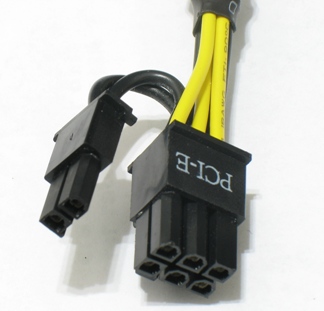
  • You should also check the PSU's connectors to confirm the unit is compatible with your particular system. The term 20+4 pin refers to a connector that can function as either a 20-pin connector or a 24-pin connector. In the 6+2 pin connector shown at right, you can snap two of the pins in the connector on or off to suit your needs.
    The vast majority of consumer PCs use standard ATX power supplies. Smaller units and units specially designed for enterprise and server applications are also available; but for common desktop systems, ATX power supplies are it.
  • All the vital system components work on the 12V rails ie they consume power on this particular volatge so whenever you pick a PSU just check that it is delivering a high output current on the 12V rail. An ideal PSu would deliver atleast 20W of power on the 12V rail just like in this particular one it is delivering 52A of current on the required frequency:


  • Just in case it is a dual rail PSU then add up the output of both the 12V rails n the see the total like in the one below:


WHAT DO THE WATTS MEAN??

Manufacturers usually list their power supplies' output in watts. A higher-watt PSU can supply more power. Desktop power supplies have a power output rating of from 200 watts to 1800 watts.
Ideally your unit will delivers plenty of power to your components and offers some extra headroom in case you want to attach additional components later. Most power supplies hit their peak efficiency levels with loads in the range of 40 to 80 percent. Building to about 50 to 60 percent of a PSU's capacity is advisable to achieve maximum efficiency and yet leave room for future expansion.
For example, if the maximum power or combined TDP (total design power) of your system’s present components is 300 watts, a 600-watt PSU would be a good fit. In a high-end system loaded with components that may peak collectively at 700 watts, a 1200-watt PSU would work well. You can get by with lower-capacity units if you don’t think you’ll ever need to expand your system, but if you can afford it, choosing a higher-capacity PSU is a better bet. 
Just incase you are still unsure you can use The Thermaltake Power Supply Calculator to help you out.

STILL NOT SURE??

Just in case you are still doubtful then just leave a comment & your question i'll get back to you ASAP with the appropriate answer to your problem.