

Subscribe For Free Updates!

We'll not spam mate! We promise.

Thursday, 26 June 2014

Best Wifi Router: Buying Guide and Tips

You just got a new internet connection and are damn excited to get a WiFi router plugged into it and start downloading the internet but there is one small problem, you don't know which one to buy right? I know it happens and its certainly happening with you right now or you wouldn't have been reading through this right now.

Choosing the correct WiFi router in a reasonable price range is a bit tricky process, but I'm here to help you guys out by underlining a few key points that you should keep in mind while buying the best WiFi router for yourself, be it at home or at office.

ADSL or non ADSL???

To keep it simple if you are using an internet connection from either BSNL or MTNL, then you will need an ADSL router. A ADSL router basically lets you use internet via your landline cable and simultaneously make or receive a call through it. These routers come with an RJ11 port into which you can connect your phone cable. Though these two provide their own branded routers which are good enough for mild usage in your room or the one next to it but if you want something more then do read the points below.

The Bands

A WiFi router comes with two types of bands, single band and double band. Single band routers transmit signals at a 2.4Ghz frequency whereas a dual band router transmits on both 2.4Ghz as well as 5Ghz. The 2.4 Ghz is the most commonly used frequency and even transmits strongly to a longer range meaning a strong WiFi network in your area but is easily distorted by interfering devices, such as microwave oven or cordless phones, in or around your premises.
This is where you need to use a dual band router working at 5Ghz, it can give you strong signals in crowded areas such as colleges or offices but will compromise the overall area covered. So if you're operating at 5GHz, you would have to stay closer to the router for better fidelity.

Internal or external antenna?


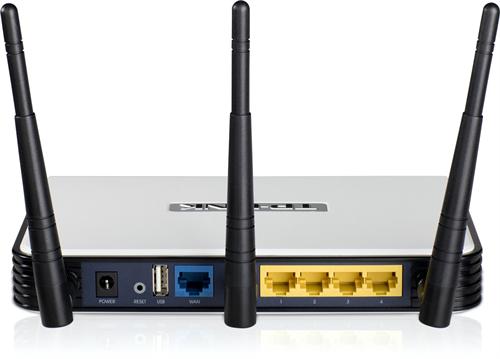
In case you want Wi-Fi access in other rooms - through walls or glass partitions - opt for a router with one or more external antennas. 

The Device Compatibility

Almost every device these days has it mentioned on their packaging box or in their user manual that to which WiFi they are compliant of. A device may just work on the 2.4Ghz frequency or may  support both 2.4Ghz and 5Ghz. For example the Apple iPhone 4S, iPod touch, Blackberry Curve 9360, and Amazon Kindle support 2.4GHz only. On the other hand, the iPad, iPhone 5, Samsung Series 7 Slate and Motorola Xoom can work on the 5GHz band as well. So before spending extra on a dual-band router, check if your devices are equipped to handle 5GHz signals.

What is 802.11n?

802.11n is the current standard in wireless networking, so if you are buying a new router and not a second hand one, make sure that you go with an 802.11n.

Security type: Password Protection
If you are setting a password for your WiFi network then make sure that you select the WPA2 option. It is the highest level of security offered and is highly recommended. To setup a secure WiFi connection click here.

How many Ports will you need?

Most routers come with up to four Ethernet ports to connect PCs for shared internet access. The addition of USB ports means you can also connect external storage or a printer to the router, to be shared by devices on the network. The USB port routers are expensive so buy them only if you are in need of the ports otherwise it'll be a waste of your money.

Which Company?

Netgear, Cisco, D-Link Systems and Linksys are some popular manufacturers of Wi-Fi routers. Buying from any of these brands will more often than not guarantee good quality.Routers start from as cheap as under Rs1000 and go all the way into Rs20000 or more. So if you want a decent router without burning a hole in your pocket then click here.

Well these were the few points that I recommend and follow myself while buying a router, if you know of any other then please leave a comment I'll be more than happy to add them.
 

Monday, 23 June 2014

Best Graphic Card for Gaming

A graphic Card is the first thing that comes to ones mind when the topic of playing PC games comes up. Not only is a graphic card a very essential component of any computer, laptop or even a cell phone but its importance increases manifold when you are building a Gaming PC which is meant for playing games in all their glory.
Though the latest generation of processors be it AMD or Intel come with their respective AMD's Radeon HD and Intel's HD Graphics series built in to their processors, they are quite weak for playing the big titles. If you consider playing low end games like Fay Cry 1-3 or even the ones with low 3D requirements like Diablo III then these integrated GPUs are just fine to go with. New games like Assassin's Creed Unity, Crysis 1-3 or Battlefield 3-4 and even Hardline are graphic intensive games and require a good Graphic Card to run especially if you have a weak CPU like the AMD A4, Intel i3 or the Intel Pentium Dual Core installed!
After a long research and feedbacks from various users I've observed that the current generation of mid to high end graphic cards are good enough to play all the top rated titles at ultra high settings on 1080p resolution! Obviously they are not the titans of gaming industry for which you might have to sell a kidney to buy.
Besides a affordable price, one of the benefits of using a mid to high end card is that you won't likely need to upgrade your desktop's power supply. Many brand-new cards don't need extra leads from your power supply, saving you from that frustrating moment when you open the case to install your new card only to find your power supply unit can't handle it.
Below is the list of a few that I've shortlisted:

1.Sapphire Toxic R9 270X 2GB


The Toxic R9 270X is an overclocked version of the AMD Radeon R9 270X. It runs at a high clock speed of 1.1GHz, and will happily boost up to 1.15GHz. At 1.5GHz, the Toxic R9 270X’s memory speed is also high, which should mean higher speeds and better frame rate by faster utilization of the 2GB DDR5 memory at a 256bit memory bandwidth.
Having 1,280 stream processors and supporting cross-fire technology this is the best graphic card in its price slot both in terms of performance and catchy looks.
The sapphire r9 270x  features a second generation vapor-x cooler design, lighter in weight but delivering the industry acclaimed quiet and efficient cooling associated with this brand.
Though the company claims a maximum digital resolution of 4096X2160 but it can go all the way upto 5,760x1,080 through the eyefinity technology delivering smooth gaming performance even at medium to high settings!
Unfortunately it has a down side, you’ll need a deep case in which to install it because the card is a massive 308mm long! Also once installed, you’ll need two spare 6-pin PCI-E connectors to power it.
I hate being bias but this is my personal favorite in the category.

2. HIS R9 270 iPower IceQ X² Boost Clock


Architecturally, the R9 270 is identical to the AMD Radeon HD 7870 that launched in the spring of 2012. Both cores feature 1,280 stream processors, 80 texture mapping units, and 32 render output units (ROPs). The difference between then and now boils down to clock speed (the HIS R9 270 runs at 900MHz base, 925 clock compared with an even 1GHz for the old AMD 7870) and of course, price. When it launched on March 12, 2012 the Radeon HD 7870 was a at  double the price of that of R9 270 and that makes something of a difference when it comes to evaluating its overall performance. What makes the R9 270 potent at this price point is that it retains the same number of render outputs and a large frame buffer (2GB, more than enough for games in 1,920 by 1,080) but is only just over half the price of the MSI R9 280X Gaming 3G.

3. MSI R9 280X Gaming 3G


In most ways, the R9 280X is a re-branded AMD HD 7970 offered at a lower price. It offers substantially similar clock speeds, total RAM (3GB, with a 384-bit memory path) and display hardware. There are a few fringe benefits that come courtesy of the new R9 series, like the ability to attach up to three displays to the DVI and HDMI ports simultaneously, rather than being forced to use DisplayPort for two of three panels. But the big news here is thats not only is it newer but the price cut—a deep enough slash that even an older part suddenly acquires a nifty new gleam.

4. Nvidia GeForce GTX 650 Ti Boost


The new GTX 650 Ti Boost is the third graphics card to carry the "GTX 650" designation. The Ti Boost is clocked at 980MHz. It supports Nvidia's GPU Boost technology and will increase its clock speed up to 1033MHz if thermal headroom allows it to do so.
The GTX 650 Ti Boost has 768 shader cores and 64 texture mapping units (TMUs). This means the new GTX 650 Ti Boost's pixel fillrate is 23.5 GPixels per second! It even supports a Multi-GPU setup via SLI. The GTX 650 TiB has a 192-bit memory bus clocked at 1500MHz, for a total of 144.2GBps of RAM bandwidth.
All these features combined make it the best bet in the lower segments of the Nvidia GPU range. 

5. Nvidia GeForce GTX 750 Ti


The GTX 750 Ti is a card that comes in two flavors ie 1GB and 2GB. Like Nvidia's previous GPU, Kepler, it's built on a 28nm process node—but don't be fooled. Nvidia has aggressively optimized this architecture for high performance and low power consumption, with truly impressive results. The GTX 750 Ti is rated for a board power of just 60W! This is what makes this card so special and worthy to be in the list.
The GTX 750 Ti's 640 cores, 40 texture mapping units, and 16 ROPs. Its not too powerful as compared to the others in the list but due to its low power consumption and price factor it has a very high price to performance ratio. So for a budget user who doesn't have a powerful PSU installed in your system, this should be your first pick.

6. AMD Radeon R9 270X


The AMD Radeon R9 270X is AMD's new midrange graphics card aimed at gamers who want strong 1080p performance, but can't afford luxury models. Like most members of the Radeon R7/R9 family, it's a refreshed version of a previous architecture—in this case, the AMD Radeon HD 7870 at PinnacleMicro. Specifically, it's a drop-in replacement for that chip, but at slightly higher clock speeds. 
The old AMD 7870 ran at 1GHz core clock, while the new chip runs at 1,050MHz. Memory transfer speeds are also up significantly, from 1,200MHz to 1,400MHz, a gain of some 17 percent. Where the original AMD 7870 shipped in both 1GB and 2GB flavors, the new R9 270X is strictly 2GB only. All of the retail cards currently shipping have the same set of display outputs—one HDMI, one DisplayPort, and two DVI. This should allow for a great deal of flexibility, and users can run up to three monitors off a single card, without relying on DisplayPort alone.

7. Asus Radeon R9 280 Direct CU II 


The Asus Radeon R9 280 Direct CU II card ships with a base clock of 874MHz and a maximum clock speed of 980MHz. The memory clock also gets the R9 280 Direct CU II a slight boost, from 1,250MHz to 1,300MHz, for an effective data rate bump from 5GBps to 5.2GBps.
The R9 280 Direct CU II is a solid choice if you use a 1080p monitor, and its near-silence when under load is definitely a boon. The only caveat to the cooling solution is that the card exhausts hot air directly into the case. If you don't have air conditioning in the summer months, or your chassis is already hot, you may not want the additional thermal load.

8. Nvidia GeForce GTX 660


The GTX 660 is based on the same Kepler architecture as Nvidia's other 600-series cards, and delivers all the same benefits, including significantly improved power usage over previous generations and GPU Boost, which dynamically increases the card's performance if there's the proper thermal and electrical headroom.
It has three Graphics Processing Clusters and five SMX units, leading to 960 CUDA parallel processing cores and 80 texture units. It's worth pointing out, however, that Nvidia has given the 660 a high base clock—980MHz and it's capable of boosting to even higher average levels at 1,033MHz. The GTX 660 has 2GB of video memory with 192bit video interface, and overall memory clock of 6,008MHz. This is the same frequency at which the higher models are clocked at in the Nvidia 660 range.


9. MSI Nvidia GTX 970 4GB OC


The MSI GTX 970 is a high-level graphics card based on Nvidia's Maxwell architecture. It's much less expensive than the Nvidia GeForce GTX 980, but it offers the same low-power consumption and decent performance for its power envelope. Ultimately, the AMD Radeon R9 280X, is its arc competitor, is significantly cheaper—though it also consumes a great deal more power. 
The differences between the GTX 970 and the Nvidia GTX 980 are relatively small in terms of memory. The GTX 970 has 1664 cores (down from the Nvidia GTX 980's 2048), 4GB of RAM, and a memory clock of 1050MHz. The MSI GTX 970 is clocked higher than the Nvidia GeForce GTX 970 reference model, with a base speed of 1,102MHz and a boost clock of 1,312MHz. Like the Nvidia GTX 980, the GTX 970 is extremely efficient, with a 145-watt power draw—which means there's no need for a big power supply unit.

10. Sapphire AMD/ATI Radeon R9 290X Tri-X OC 4GB


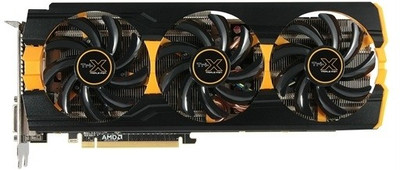
The Sapphire AMD/ATI Radeon R9 290X Tri-X OC 4GB video card looks good and has the performance to back up the good looks especially after the massive price cut by AMD. The Toxic 3X GPU cooler is about as big of a GPU cooler that I've have ever seen on a dual-slot video card. It stretches 12-inches in length and is comprised of two aluminum finned heatsink arrays that use six copper heatpipes to help dissipate the heat from the AMD GCN 1.1 GPU. This card stands out from the crowd due to the WindForce 3X GPU cooler that uses six copper heatpipes (2x 8mm and 4x 6mm) and three 75mm cooling fans to keep this factory overclocked card running smoothly. This beefy GPU cooler marketed as being able to handle thermal designs of up to 450 Watts. It is able to keep the cards temperatures under control at both stock and overclocked speeds!
The R9 290X Tri-X OC 4GB comes clocked at 1000 MHz core and 1040 MHz boost with 2816 shader processors! The 4GB of GDDR5 memory runs on a 512-bit bus and is clocked at 1300MHz. It comes with a maximum resolution of 4096x2160 capable of handling high end games on ultra high on even a triple monitor setup or a 4K setup. It ships with dual-link DVI-I, dual-link DVI-D, HDMI and DisplayPort outputs. All of the video outputs are standard size, so no adapters are needed, which is nice.
Also to top it all up it supports quad CrossFire, which I don't think you'll ever be needing!

So this was the list that I came down upon as per what I observed and experienced, do leave a comment for any additions or suggestion if you have any. As always your queries regrading the same are most welcome.

Saturday, 21 June 2014

How to save Disk Space on Windows

The sole reason why you are reading this article right now is because you have run out of disk space on your system or are very low on available free space.
Low or no disk space is a serious problem these days especially with file size increasing espceially with the introduction of formats like .mkv and games that require upto 50GB of space after installation! This is a problem for Hard Disk users and a catastrophe for Solid State Drive users. This makes your system run, work and boot up real slow worsening the situation even more. What to keep and what not to is a different topic but today I'll tell you that how can you easily free up a few Gigabytes of valuable disk space in your Windows Partition, making your computer work faster and boot up quickly.
Below are the few steps that will aid you in the process:
Note: Use Command Prompt by typing 'cmd' (without quotation marks) in the Search Programs and Files bar in the Start Menu on Windows 7 or later and by pressing Ctrl+R and typing 'cmd' (without quotation marks) in the Start Menu on Windows XP or earlier.

The Disk Cleanup

The very obvious and the simplest solution is the free and pre-installed feature that comes along with your copy of Windows, the disk cleanup function. It helps in getting rid of unnecessary temporary files and other backup files that are no longer needed by your system and are merely sitting and occupying your disk space.
Simply right click on the Windows partition in My Computer, click Properties and click “Disk Cleanup” under the pie chart displaying space used. This will help you reclaim MBs of disk space easily. Make it a regular habit to run Disk Cleanup at regular intervals of tume.

Free Softwares like CCleaner

Though the Windows Cleanup is a very quick, effective and handy tool to work with but it still proves to be ineffective when it comes to cleaning certain advanced and deeply rooted files that are skipped and keep occupying disk space unnecessarily. Download and install a free software like CCleaner and clean out cookie files, program data etc which gets accumulated over a period of time.

Disable Hibernate

Hibernation in computer is a process in which your computer goes into a sort of power saver mode if left idol for sometime. It basically cuts power to all the unnecessary components of the system like the screen and saves all the currently running processes at the same point where you've left them.
For this process Windows keeps a certain amount of disk space reserved and hence it wastes your valuable HDD space. You should turn off this feature if you rarely or never use this feature. Simply go to command prompt as administrator and type “powercfg /hibernate off”.To turn it on simple replace the "off" by "on".

System Restore Tweak

Windows provides a very handy and useful feature of System Restore, it basically makes a back up of your Computer with the current settings and updates applied and is supposed to be used by a user when the system fails to boot or starts exhibiting abnormal behavior after a particular update or setting changes.
You should reduce the size allocatin for this purpose by Windows or completely turn it off if you are in grave need of some free space or are confident that you'll never need this feature, though turning it off completely is not recommended.
To reduce allocated space
1. Go to Computer
2. Click System Properties on the top
3. System Protection from the side menu
4. In the dialogue box that appears click on configure
5. Change the allocated disk space.

To turn off backup
1. Follow the steps above from 1 to 4
2. Click on Turn off System Protection.

So these were all the possible and practical solutions to saving and reclaiming your disk space. just follow these steps and let me know if they were useful to you or not, do leave a comment with any other way to solve the same problem if you know any.

Tuesday, 17 June 2014

How to keep your Hard Drive Cool

A computer be it a laptop or a desktop has a lot of components and all these components face one problem in common, Heat. Heating of components be it the graphic card, processor or even the Hard disk drive is a common problem and can have a severe impact on the parts performance and health in the long run rendering it useless and malfunctioned in many cases.
Over the past few months I've written a lot of articles on how to keep your entire system cool but today I'll give you a few quick tricks and tips to keep your Hard disk or Solid state Drive cool and healthy.

The need of Cooling

Hard disk is the most valuable and vital part of your entire system, it not only stores all your valuable data but also helps you load the entire Operating System and albeit let you do all the tasks on your PC or Laptop.
The normal temperature of a Hard Drive is considered to be in between 30°C to 40°C, though 41°C to 50°C is considered to be the maximum sustainable temperature for optimum functionality. But many a times it blows of the roof reaching as high as 55°C to 65°C in severe cases! Believe me you don't want to put your HDD or SSD in that spot.
Follow these simple steps to keep your HDD or SSD cool and safe.


Place it properly

Most of the computer cases come with more than two HDD bays for placing your Hard Drives or Solid State Drives. For proper cooling you should place your drive on the upper most bay so that it has more clearance both under and below it. This will allow more air around it making it cooler and properly ventilated.
If you have two seperate drive modules then make sure you keep proper spacing between them so that they don't aid the heating and radiate it on eachother!

Install an extra Cooler


Just like a laptop cooler there are plenty of HDD after market coolers flooding the market and are pretty good at keeping your hard drive cool. They can easily reduce the temperature by 6-7 degrees. You can mount them on top of the installed disk and connect it to your PSU for powering them up. The only disadvantage is that they need one or two 4-pin molex power connector from your power supply, so make sure that you have good enough smps to support them. They genrally cost as low as Rs300-400.


Keep it clean

The arc enemy of any computer is dust and that goes for all its components as well. As dust is a bad conductor of heat it traps the heat radiated by individual components and increses your machine's temperature. keep your computer dust free and clean it after every 4-5 months period.

Defragmentation

Yes the more fragmented your hard drive will be the harder it will be for your processor to find files on it and the more your drive will spin resulting in extra heat being desipated! So keep your HDD or SSD defragmented by using the default Windows defragmentor, if you don't want to install any extra software for the purpose, and set it to do it on regualr intervals of time.

These were the simple steps that I've been following myself over the years and have kept my computer safe and healthy, feel free to add any point to this article by leaving a comment below. And as always your queries regarding the same are welcome.

Monday, 16 June 2014

How does a CPU work: Processing and working of a Processor Explained

CPU or the Central Processing Unit is a vital and key component of the desktop, laptop, tablet or even the smartphone that you are using to read this article right now!
I know that many of you are real tech savvy people and have a lot of interest in computing but many of you are blank when it comes to how a CPU works as a matter of fact the full form of the abbreviation is seldom known to many.
But when searching for a new desktop or laptop, and typical CPU-related terms such as “quad-core” or ” i7 core”  pop out from advertisements, each proclaiming their superiority over the other — what is a person to do, especially if he or she has no idea what either of those terms mean?
Not to worry in this article today I'll explain the basic functioning of a CPU and fill you all up with some cool facts in due course.

The Basics

First of all, what is a CPU? As mentioned earlier, CPU (also commonly called a microprocessor) stands for “central processing unit”. It’s a very suitable name, because it describes exactly what the CPU does: it processes instructions that it gathers from decoding the code in programs and other such files. A CPU has four primary functions: fetch, decode, execute, and writeback.

Fetch

In the first step, the CPU retrieves the instruction that it needs to run from program memory. Each instruction in a program (which contains millions of instructions) is stored at a specific address. The CPU has a program counter, which keeps track of the CPU’s position in the program more specifically, the address of the instruction that the CPU is accessing.

Decode

All of you are familiar with the fact that programs are written in different programming languages like java, c/c++ etc and is compiled by a compiler for execution by converting any language in its input to assembly language as an output. Assembly language is a language that the CPU understands, but may vary between different CPUs. From there on, an "assembler" translates Assembly Language into binary code (that is in the form of 0 and one), which the CPU can manipulate to execute the instructions it is given.


Execute

Based on the instructions it is given, the CPU can then do one of three things:
1) Using its Arithmetic Logic Unit (ALU), the CPU can calculate extremely complicated mathematical functions.
2) Move data from one memory location to another.
3) Jump to different addresses in the program based on decisions made by the CPU itself.
The diagram above shows the setup of an extremely simple microprocessor capable of performing these actions.

Writeback

Typically, each of the actions taken by the CPU produces some sort of output. The CPU takes this output and writes it into the computer’s memory. For example, if a program wanted to execute the first item of the list above on two operands, 3 and 5, the output, 8, would be written back into a specific address. However, for the 3rd bullet, the program counter (which, as stated above, is used to keep track of the CPU’s progress through a program) simply changes to reflect the start of the next set of instructions.
When these four steps have been completed, the Program Counter moves onto the next instruction and repeats the entire process again, until the termination of the program.

The Clock


Another important component of a CPU is called the “clock.” I know that all the Electronics or Electrical Engineering students or professionals are familiar with this term but still I'll explain. The clock produces a signal that acts to synchronize the logic units within the CPU as they execute the instructions given in a program. In the diagram above, the purple line represents the signal of a clock as it is being inputted into a logic unit. For every time the line goes from low to high, and back to low (one cycle), an instruction is carried out.
Now you understand that those figures in Gigahertz written on the processor packaging means and refer to its clock speed ie the number of times that a CPU’s clock cycles per second.
A 3.7Ghz processor means that its clock cycles 3.7 billion times in one second, and executes an equivalent number of instructions! So go ahead and flaunt this knowledge with your friends.
Now, even though this seems like an incredible amount of information processed, a CPU operating solely on the technology explained above would still be slow, if it were not for parallelism, and multi-core technology. But I’ll leave that for later, as I’ve just given you a great deal of information to digest. Now, you’re a little closer to learning how processors work, and to to gauging which processor is best for your needs.
If you still can't decide then as always I'm there to help you out anytime.
Do leave a comment or suggestion in the comment box regarding this article.....

Wednesday, 11 June 2014

Difference between CPU GPU and APU

A computer is a versatile machine, allowing its users to make anything out of it as per their perosnal aims and desire. But over the past few years the terms related to describing a computer component and hardware are becoming more and more complex with every passing day. CPU, GPU and now even APU are few of the key terms used every now and then in relation to computers.
So if you are an average user or someone who is not familiar with hardware terminoilogy then you are at the right place 'coz today i'll explain the advanatages and disadvantages of these three key components along with drawing your attention to some really geeky stuff!

CPU:

It stands for Central Processing Unit and  is the most common and oldest term that we all have been listening to since the first time we saw what a computer really looks and works like. It is basically the heart of your system unmindful if its a laptop, dektop or even a tablet PC! It enables your system to load the OS on the memory to executing each and every click and clack that you do on your PC.
Video games demand much from CPUs, and usually earmark the physics calculations to it. A processor can have a mere single core working at a weak 1.0Ghz to a mammoth 8-core giant easily reaching to 4.0Ghz!
Some CPUs also carry with them different technologies, such as Intel’s Hyperthreading, where 4 physical cores can appear to the operating system as 8 virtual cores, getting the most power out of the 4 that you really have.

GPU:

The Graphical Processing Unit commonly seen and known as a Graphic Card is a chip that rests on a circuit board combined to be named as a Graphic Card. It helps you to connect your system to the monitor for a display output through a VGA or HDMI port. While computers can function without some sort of a GPU, you won’t be able to connect a monitor to them.

A GPU is avaiable in various shapes and sizes, it can be an integrated GPU such as that buit in on hyour motherboard or to a dedicated GPU that you plug into the PCI or PCI-E port of your motherboard. You would use a GPU to do more of the number crunching involving physics and vectors, ie. more algebraic functionality rather than running process strings and terminal based applications really. GPU’s are particularly useful in builds that focus on graphic design, CAD (Computer Aided Design) work, gaming (shadows, physics, simulated enviroments), or multi-desktop (more than 1-2 monitors).
The difference between CPUs and GPUs is that GPUs are highly specialized in number crunching, something that graphics processing desperately needs as it involves millions, if not billions, of calculations per second. The amount of cores that GPUs have depends on the manufacturer. nVidia graphics solutions tend to pack more power into fewer chips, while AMD solutions pack in more cores to increase processing power. Typical high-end graphics cards have 68 cores if it’s nVidia, and ~1500 cores if it’s AMD.


APU:

A relatively new term that stands for Accelerated Processing Unit & gained popularity after the launch of the AMD line-up of the new APU chips. Not going into much technicality it is a sandwich of a CPU and a GPU together ie both of these are put on the same die makinhg them in closer proximity with eachother hence increasing their efficieny by reduing the time taken for the signals to be transferred to and fro. Also an APU has less silicon used up making it less power hungry and cheaper to produce making it a cheap buy for the consumers.

While APUs generally don’t satisfy power users’ highest demands, they are more than enough for those with light to medium-high requirements for general processing as well as gaming. Although they can be used in many machines, they are usually recommended for mobile devices, laptops, and lower-end desktops. AMD has been making a big push toward APUs with a combination of their CPUs and Radeon graphics.
Intel has also been doing the same, including graphics capabilities in their Sandy Bridge and Ivy Bridge processors, although they don’t market them as APUs.

Conclusion:

Choosing between a CPU with a descrete GPU or a single all in one APU is all about needs and usage. If you are a high end user then a strong to mid range CPU with a heavy GPU is recommended whereas for medium to low end users an APU is typically the best option considering everything.

So this was all that I had to say regarding these three components hope that it helped you to some extent. Do leave a comment regarding your queries or confusions and as always if you have a point to add to this then feel free to say.